How to create a website using WordPress/How to use plugins/No-code construction blog



How to enable BuddyPress functionality with the LMS plugin TutorLMS
At HanamiWEB Online School,
●Ask questions in real-time in the virtual study room!
●Ask as many questions as you want via chat!
●E-learning materials that you can learn as much as you want, 24 hours a day!
All included for just 2,500 yen/month!
I am researching LMS plugins to create an e-learning system using WordPress. I am introducing the paid version of the TutorLMS plugin. Since I want to create a full-fledged system, I am comparing the features of the paid version.
This time, we will explain how to add the BuddyPress function, which is a feature of the paid version of TutorLMS.
What is BuddyPress?
This is a plugin that allows you to build a membership-based SNS site on your own site. The main functions are
- User follow function
- Send a private message
- Creating a group forum
This is the main purpose of adding BuddyPress functionality to TutorLMS.
Install BuddyPress
First, install and activate the free BuddyPress.
- Plugin
- New additions
- Enter [BuddyPress] in the keyword field
- install
- activation
To do.
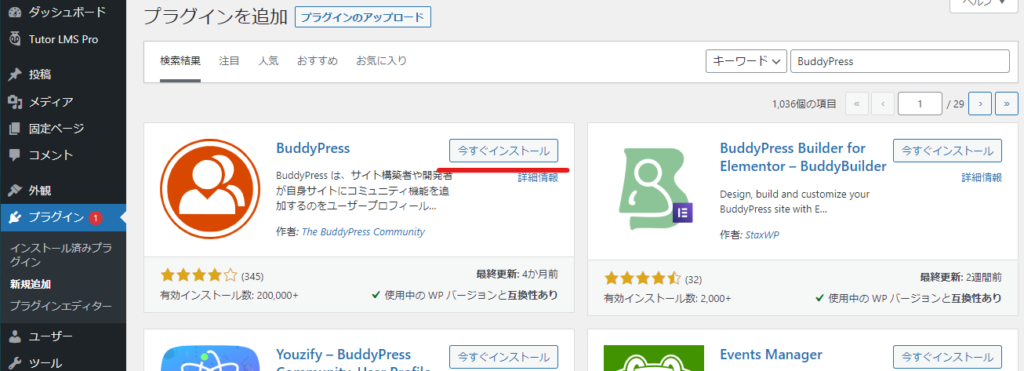
Added BuddyPress features
- TutoeLMS
- Add-ons
- BuddyPress
Turn it ON.
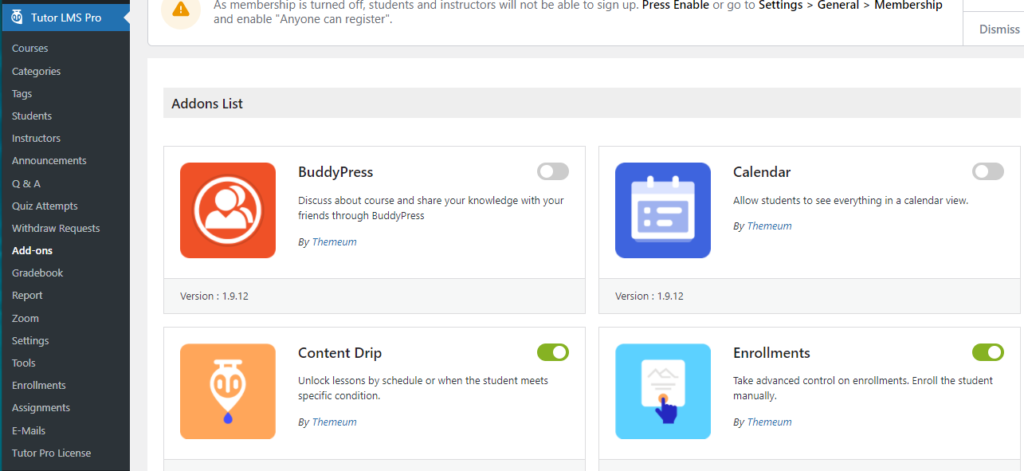
BuddyPress Feature Settings
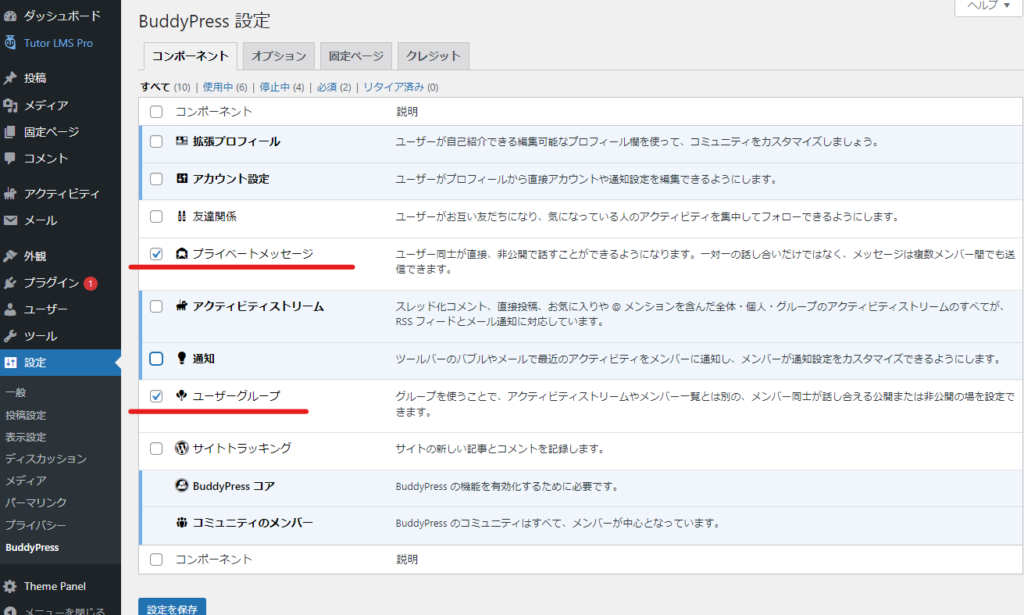
- WordPress Dashboard Settings
- BuddyPress
Turn on the necessary features. The required items to use BuddyPress with TutorLMS are
- Private Message
- User Groups
Be sure to check these two boxes.
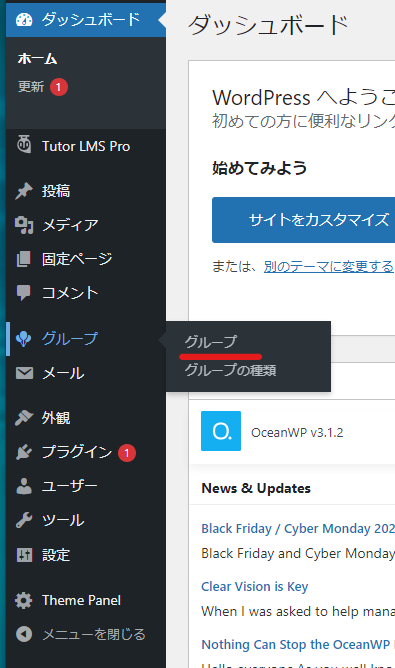
How to Create a Group in BuddyPress
- group
- group
Create a group in
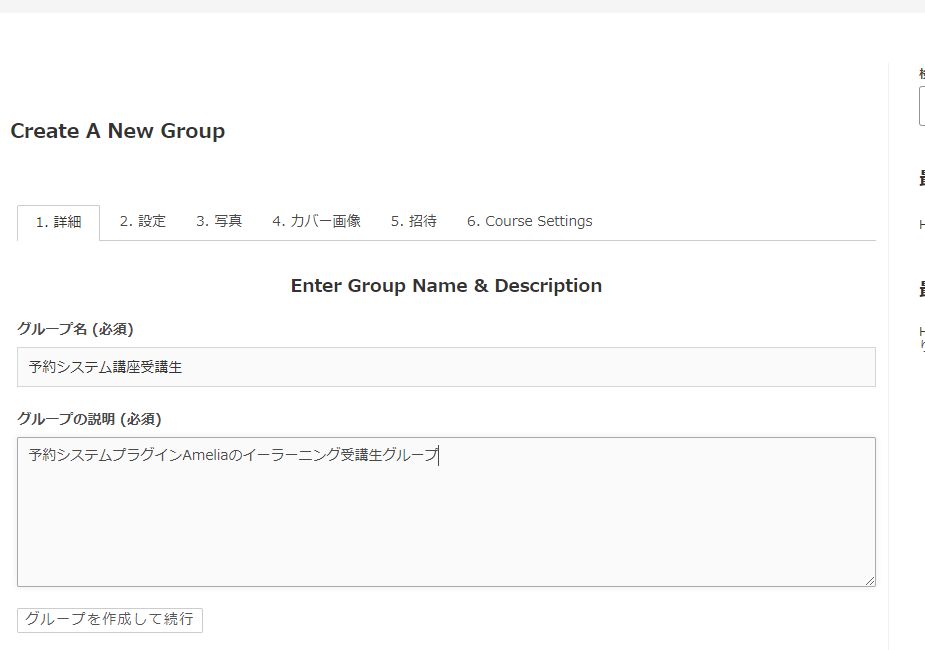
Create a group name
When you create a new one, first
- group name
- Group Description
Enter the.
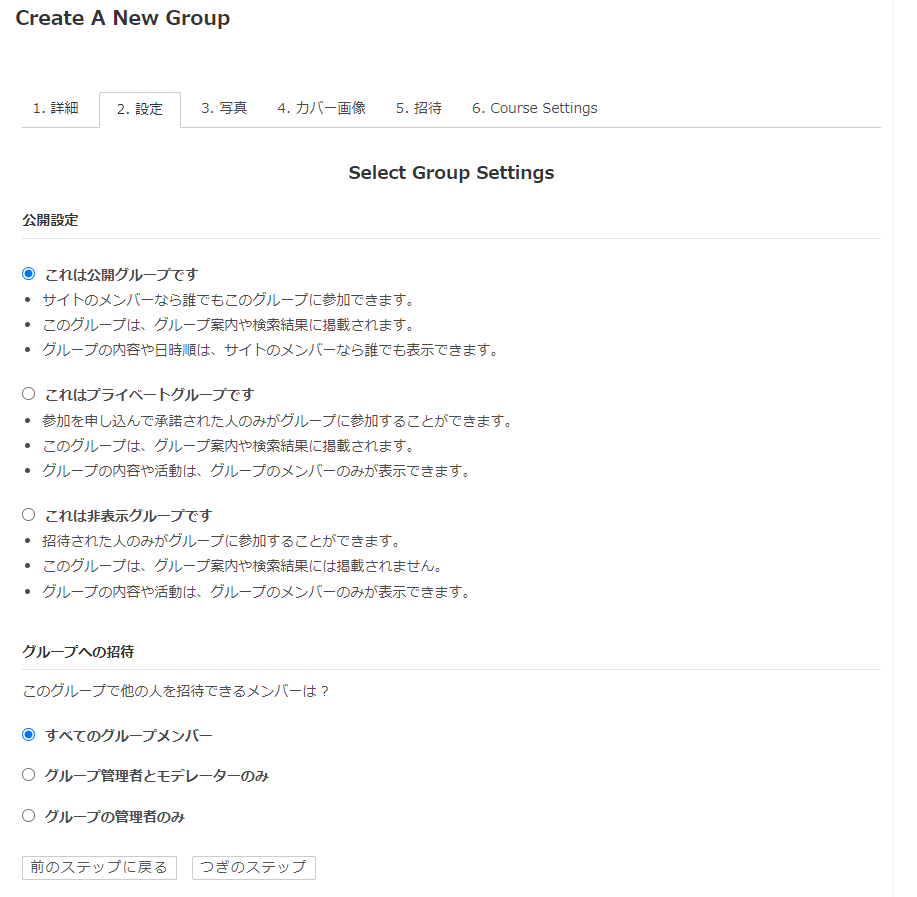
Group privacy settings
Determine the group settings.
- Public groups - Group activities are open to the public and anyone can join
- Private Groups - Group activities are open to members only. Permission required to join
- Private group - invite only
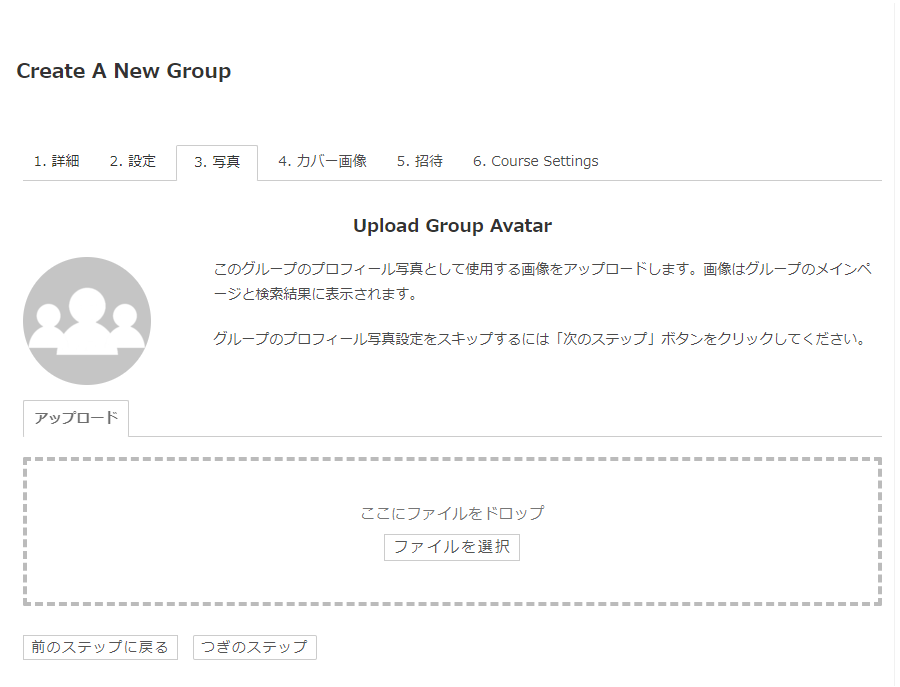
Group avatar settings
Set an avatar for your group (optional).
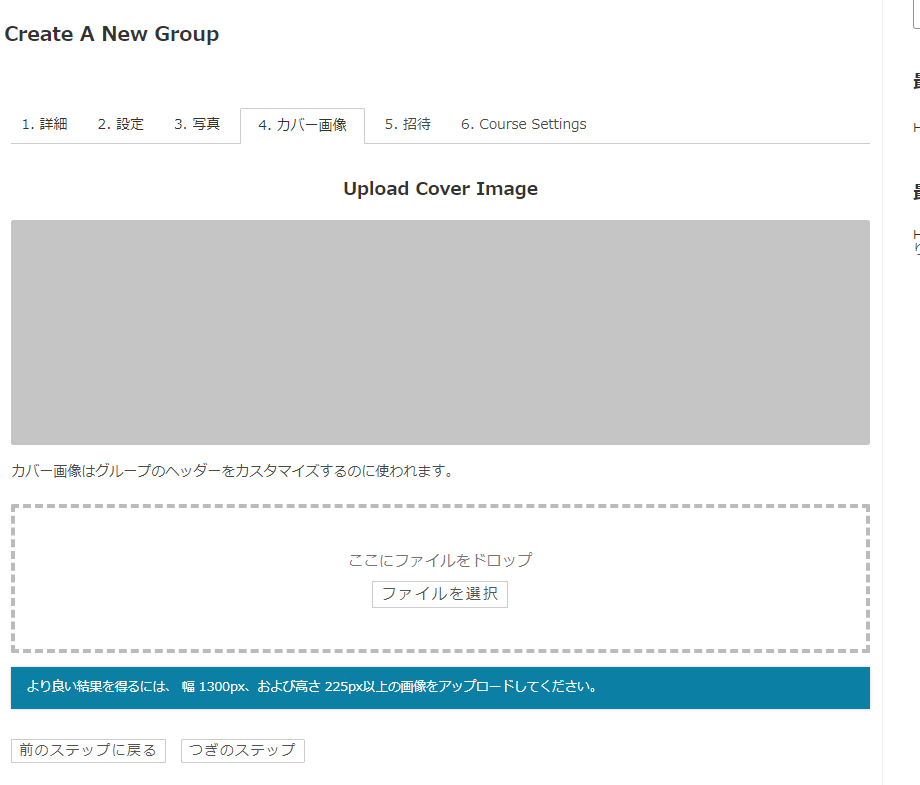
Cover photo settings
Set a cover photo (optional)
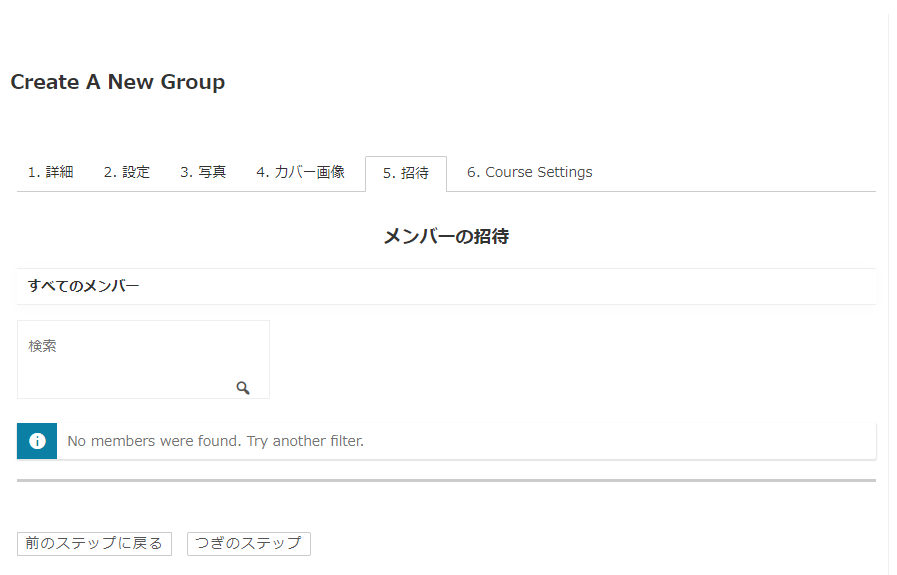
Member invitation
You can add members who are already registered with WordPress. (Optional)
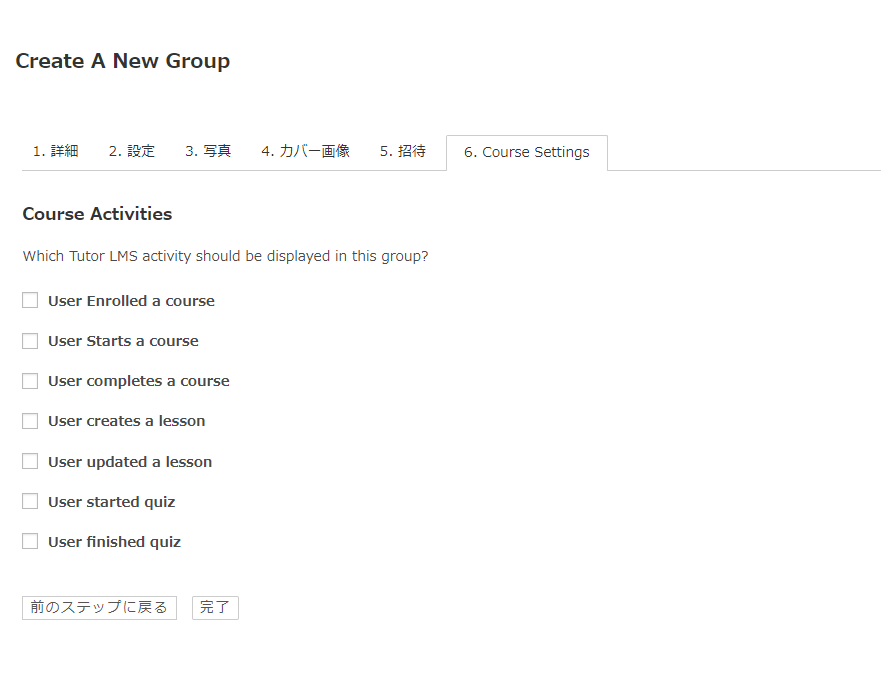
Configuring TutorLMS
Set which activities you want to display for the group.
- User Enrolled a course - when a user is added to a course
- User Starts a course – When a user starts taking a course
- User completes a course
- User creates a lesson - When an authorized administrator creates a course
- User updated a lesson - When an authorized administrator edits a course
- User started quiz - when a user starts a quiz
- User finished quiz - when the user finishes the quiz
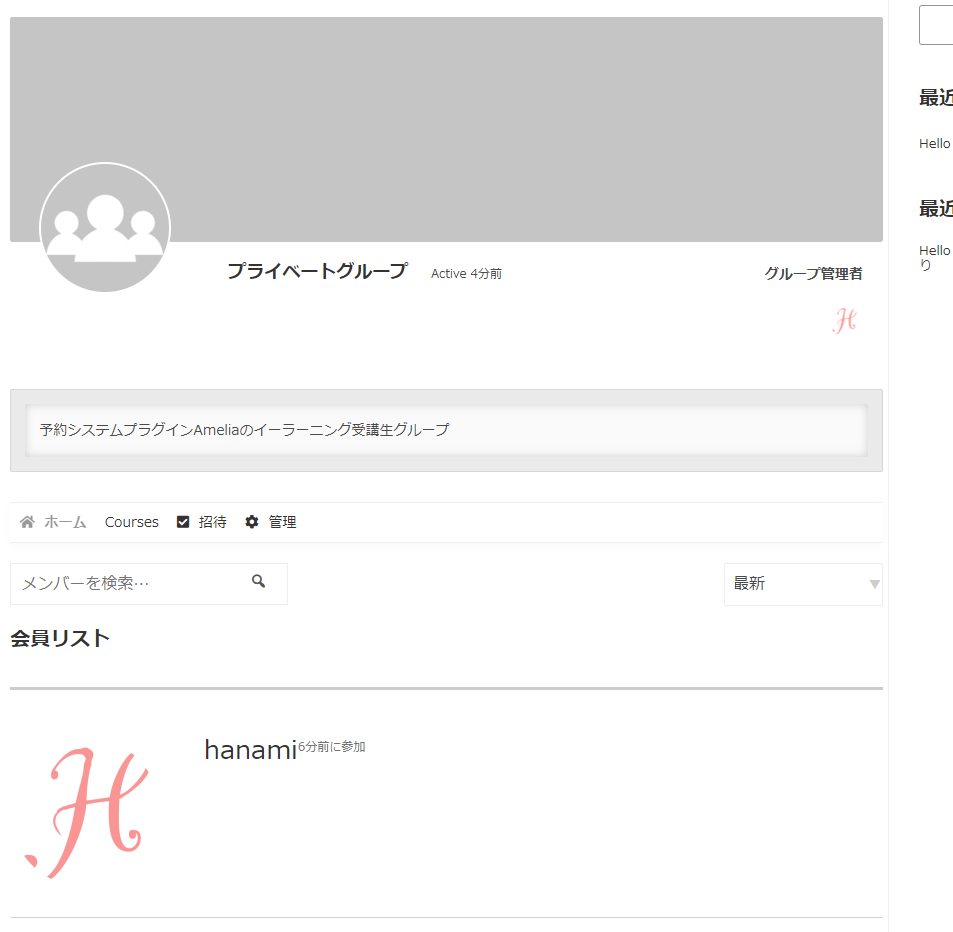
has been created.
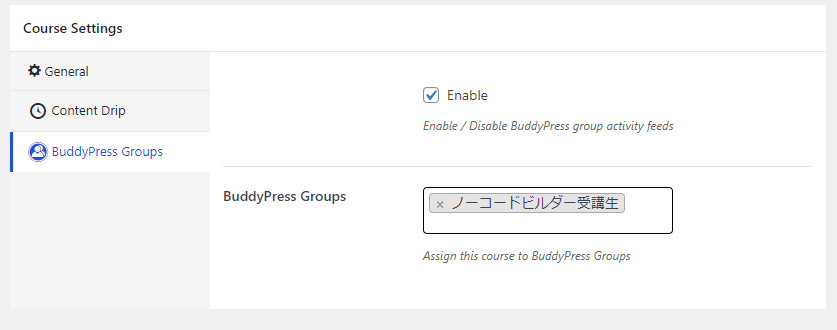
Set up a group for a course
Open the editing screen for the course you want to set up.
- TutorLMS
- Courses
- Open the editing screen for the course you want to edit or create a new one.
- Course Settings
- BuddyPress Groups
Check to enable the group function and select a group.
Private messaging feature
We would like to introduce the private message feature added to BirddyPress.
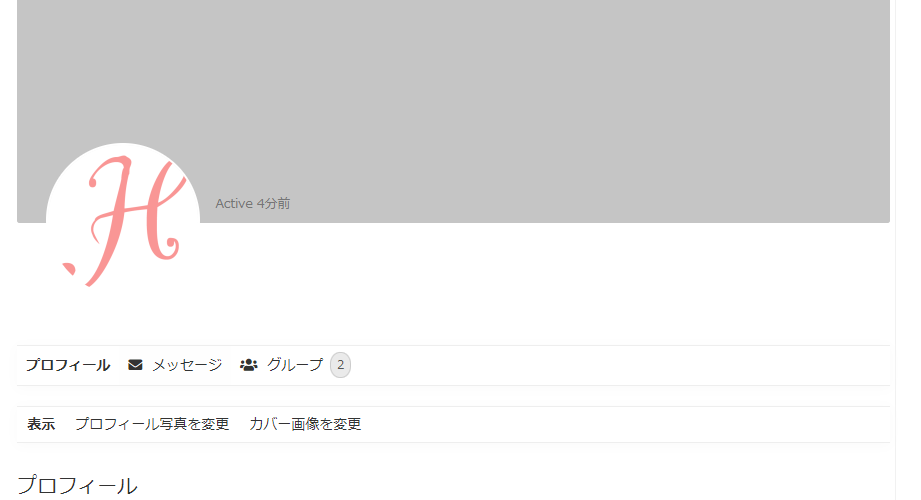
You can send a private message to a user via the red-lined area on the user's profile page.
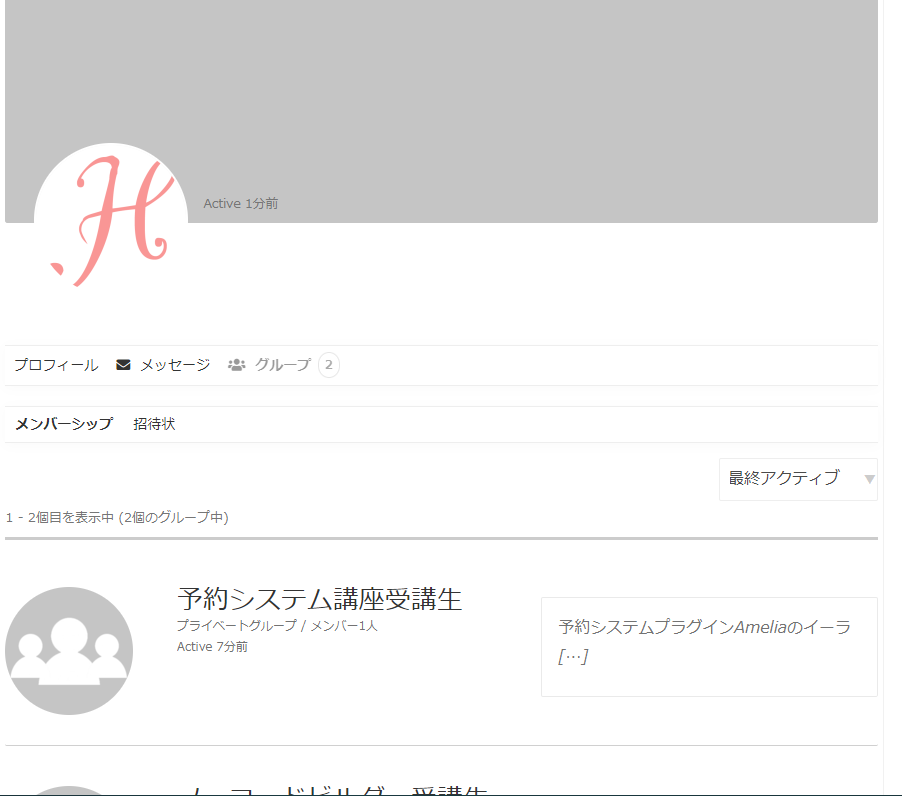
TutorLMS added to group activities
Released as soon as the next morning! Weekends and holidays are also available!
Super rush website creation plan
We offer a rush website creation plan for those who need a website in a hurry!
We can publish your content as soon as the next morning, even on weekends and holidays! If you have any questions, please check the details below!

Latest Articles

How to Enhance EEAT with WordPress | Settings and Design Improvements Necessary for AI-Driven Traffic


[2026 Latest] How to check the number of visits from generated AI using GA4's exploration function

Error message: Allowed memory size of 268435456 bytes exhausted (tried to allocate 14684160 bytes) Error: On Lollipop
 English
  日本語
日本語