How to create a website using WordPress/How to use plugins/No-code construction blog



Even if Gmail POP is discontinued in January 2026, you can still continue to use Gmail!
At HanamiWEB Online School,
●Ask questions in real-time in the virtual study room!
●Ask as many questions as you want via chat!
●E-learning materials that you can learn as much as you want, 24 hours a day!
All included for just 2,500 yen/month!
Big news has come in!
In January 2026, Google will stop allowing Gmail to retrieve emails from external servers using POP.
Xsetver has also officially announced the following regarding the provision of Gmail's POP service:
An official announcement has also been made on Lolipop ▼
Information regarding email usage due to changes in Gmail specifications from January 2026
Looking at this information alone, you might be wondering, does this mean that email addresses using custom domains acquired on a server will no longer be usable with Gmail?
There is also information about paid services that can be used as is if you migrate to WorkSpace.
Regarding the POP3 service being discontinued by Gmail
What I want you to realize here is that although you will no longer be able to receive email using POP3, you will still be able to send email using SMTP.
This does not mean that you will no longer be able to use Gmail to send emails from your own domain.
As long as you can receive emails, you can send emails using SMTP without any problems, just as before.
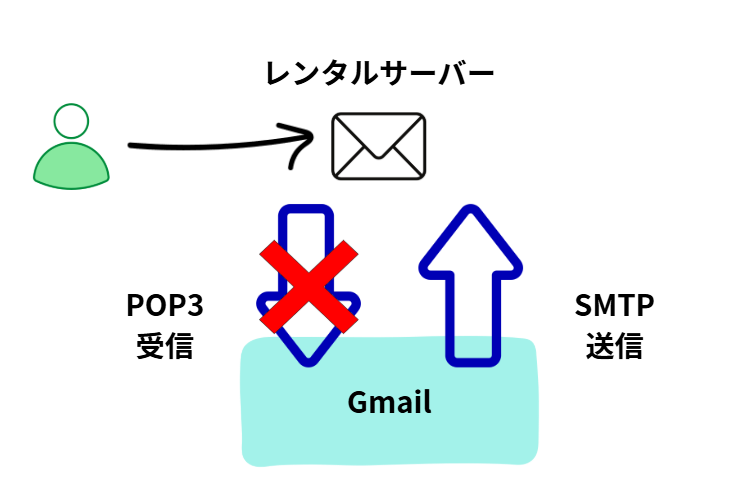
Alternative solutions following the Gmail POP3 service outage
The measure we took this time was to forward emails to Gmail using the server forwarding settings, and if you can receive emails from your own domain, you will be able to send and receive emails as before!
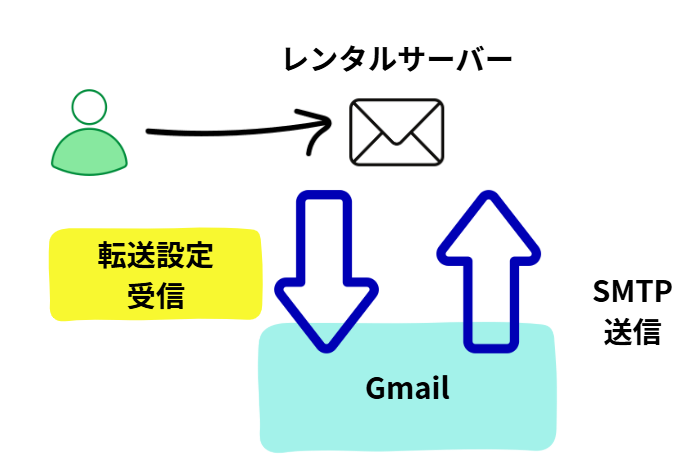
Now, I would like to explain the settings that will allow you to continue sending and receiving emails using Gmail even after POP3 service is discontinued.
If you don't need to set it up this time
- I already have forwarding set up on the server
- I'm using Workspace
If you are one of these people, don't worry, as the discontinuation of Gmail's POP service will not affect your ability to receive emails!
Video explanation of the Gmail POP service termination
Check if Gmail is set up to send emails via POP3
Please check if your email settings are set to receive emails using Gmail's POP3.
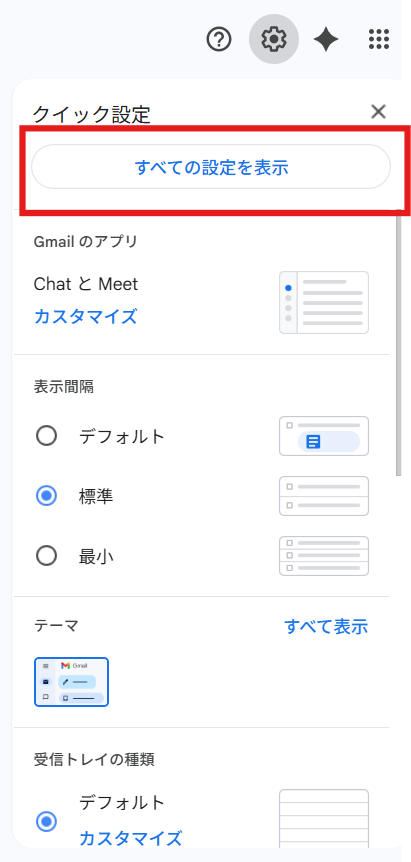
First, open Gmail and click the gear icon in the top right corner.

Then click the Show all settings button to open the advanced settings.
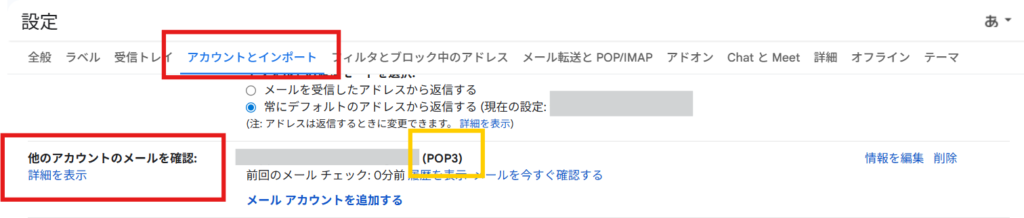
Open [Accounts and Import] and the email address you receive via POP3 will be listed in the [Check email from other accounts] section.
This POP3 receiving service will be discontinued, meaning that you will no longer be able to receive emails through Gmail after January 2026.
Configuring email forwarding on the server
You'll be surprised at how easy the next step is: all you have to do is set up email forwarding to Gmail on the server.
Configuring email forwarding on the Xserver
For Xserver, there is a "Forwarding" setting in the email account settings.
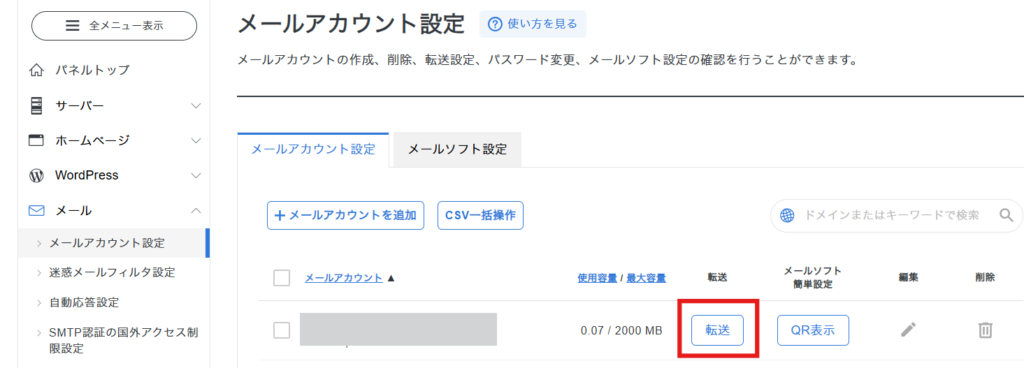
Simply enter your Gmail address here and set it up, and emails from your own domain will be delivered to your Gmail.
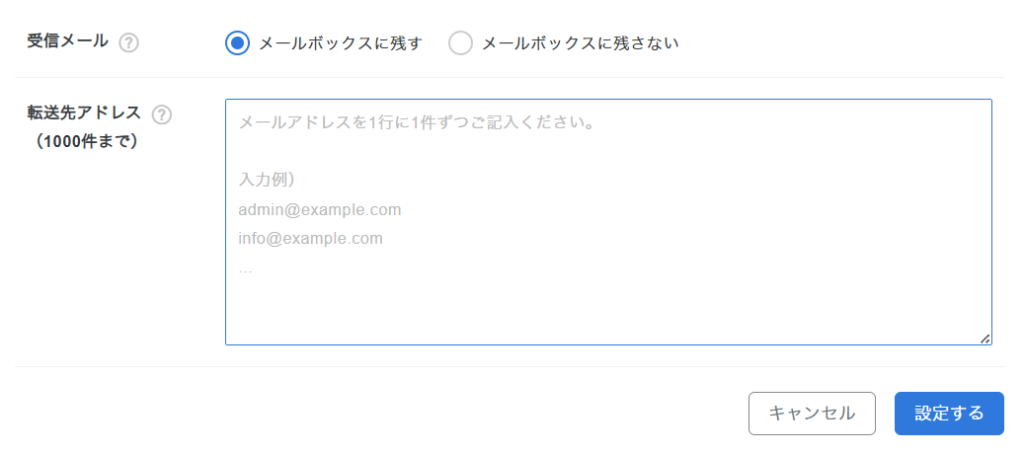
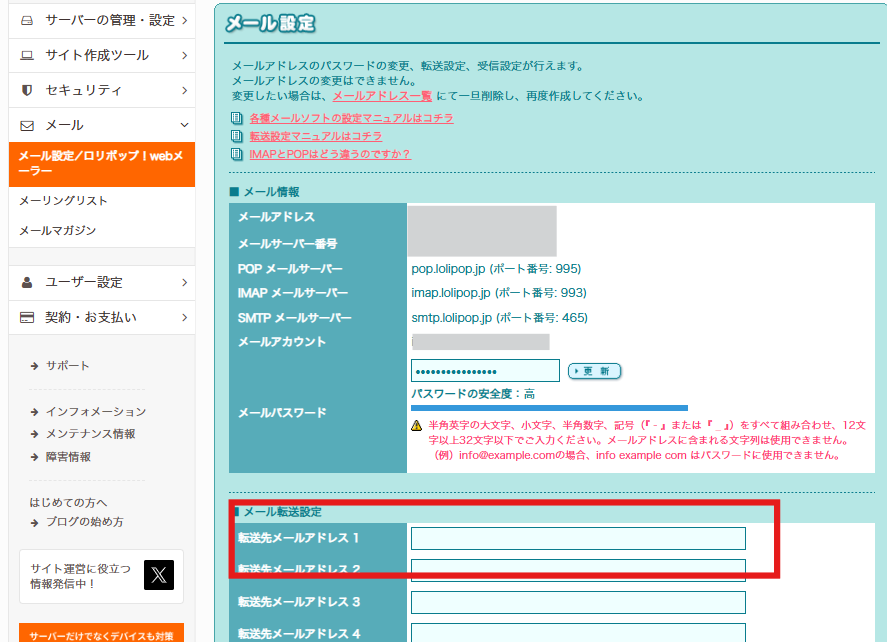
Email forwarding settings on Lollipop
There is a forwarding setting in the email settings, so set up Gmail here.
Check the SMTP sending settings from Gmail
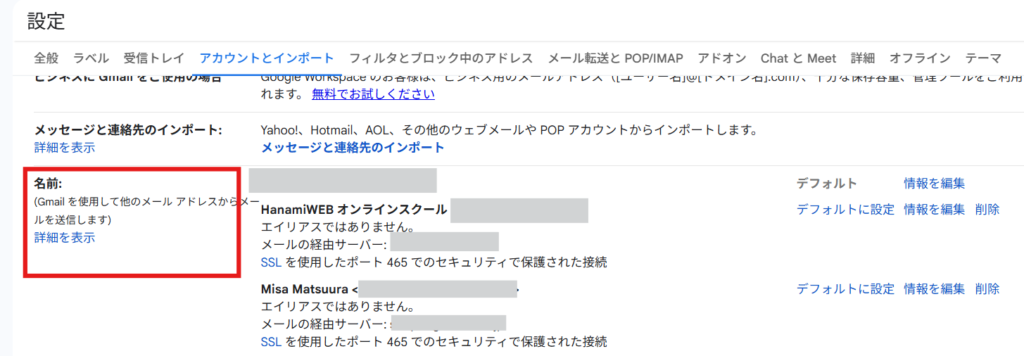
If you have been using Gmail to send and receive emails up until now, you should have already completed the SMTP sending settings, but just to be sure, we will explain where to check if the sending settings are correct.
Click the gear in the top right corner of Gmail.
Click Show all settings to open the advanced settings.
In the [Accounts and Import] tab, under [Name], you can find the setting for sending emails from an external email address. If the email address you want to set up is entered here, there is no problem.
[Important] Finally, delete the original POP3 settings.
*Please proceed at your own discretion.
Since emails can be received via POP3 until December 2025, it will be difficult to tell whether they are being forwarded from the server or received via POP3, so I think it would be better to switch to forwarding settings while POP3 is still available.
You will need to delete the POP3 settings in Gmail and test whether the forwarding settings are actually working properly, but please be careful if you are unable to restore the POP3 settings yourself if the forwarding settings do not work after deleting the POP3 settings.
Automatically labeling forwarded emails is convenient.
Create a new filter in Filters and Blocked Addresses, located to the right of Accounts and Imports.
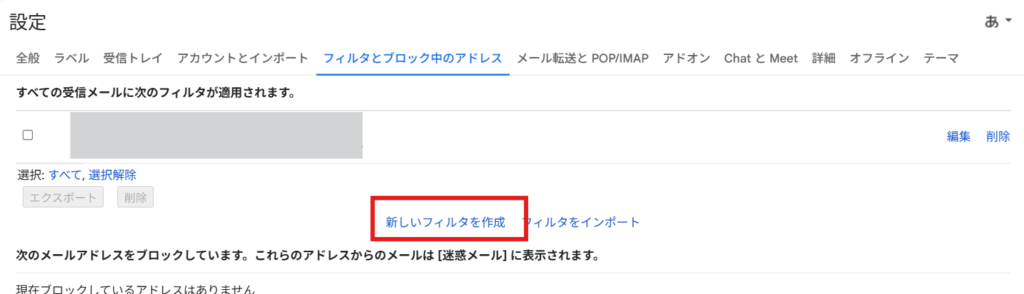
Set the email address of your own domain to receive in the To field
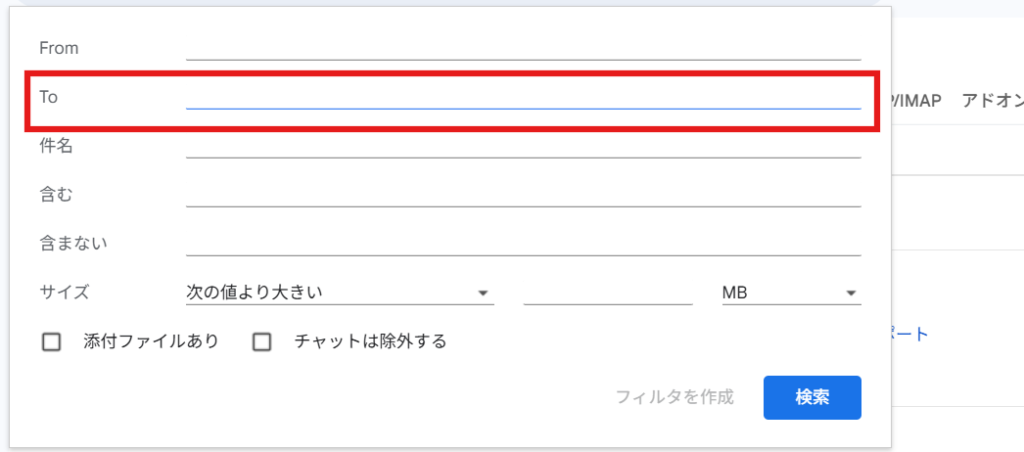
Set up your custom domain to automatically label emails sent to it.
Enter an email address with your own domain in the To field and click [Create filter].
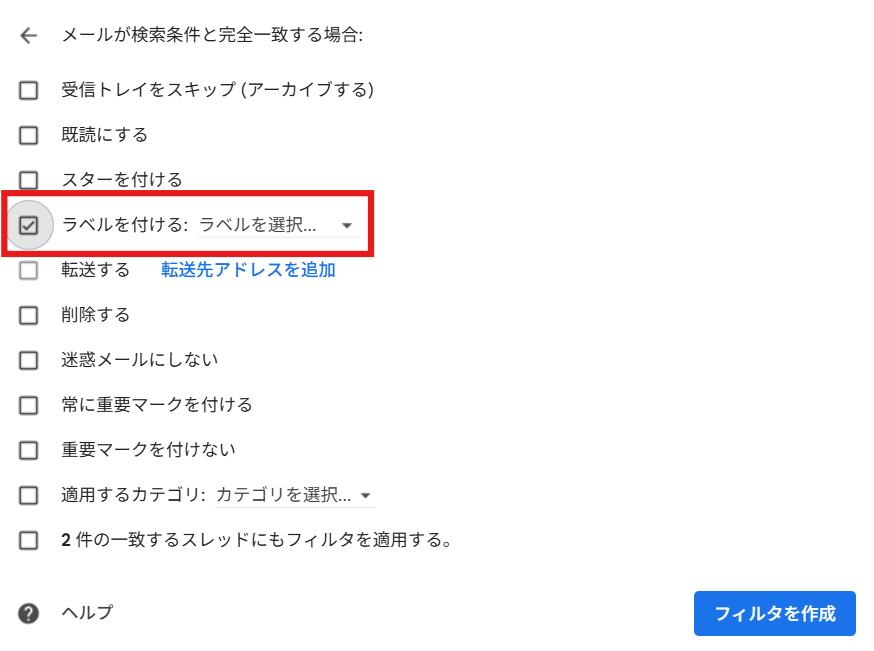
Check the box for Add label, select the label you want to add, and click the [Create filter] button.
Sending and receiving test
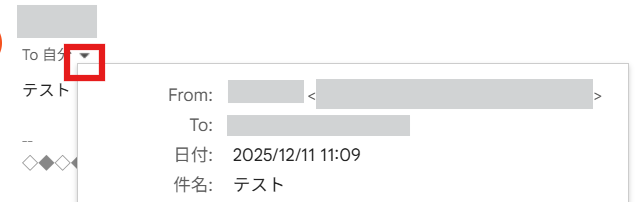
Test the flow by sending an email from another email address to the custom domain email you just set up and replying to the email you received.
When doing so, open the ▼ mark next to the To field of the email to check which email is being sent and received. Once you have confirmed this, the setup is complete!
How to continue sending and receiving emails with Gmail even after the POP3 service is discontinued
We've explained how to continue using Gmail even after the POP3 service is discontinued, but please make your own decisions!
If you are using WorkSpace
Workspace does not use pop3 communication from an external server, so there will be no problems receiving emails even after January 2026!
If you cannot set up Gmail forwarding in-house
HanamiWEB provides online support. Please register on our official LINE account and feel free to contact us!
Released as soon as the next morning! Weekends and holidays are also available!
Super rush website creation plan
We offer a rush website creation plan for those who need a website in a hurry!
We can publish your content as soon as the next morning, even on weekends and holidays! If you have any questions, please check the details below!
Latest Articles
How to Enhance EEAT with WordPress | Settings and Design Improvements Necessary for AI-Driven Traffic


[2026 Latest] How to check the number of visits from generated AI using GA4's exploration function

Error message: Allowed memory size of 268435456 bytes exhausted (tried to allocate 14684160 bytes) Error: On Lollipop
 English
  日本語
日本語