How to create a website using WordPress/How to use plugins/No-code construction blog



WordPress Amelia Reservation System Plugin: How to Set Up Recurring Service Reservations (Paid Version) (9.x and later)
At HanamiWEB Online School,
●Ask questions in real-time in the virtual study room!
●Ask as many questions as you want via chat!
●E-learning materials that you can learn as much as you want, 24 hours a day!
All included for just 2,500 yen/month!
This article explains how to use Amelia, a WordPress plugin that allows you to create a homepage with a reservation system.
In the major update in December 2025, the UI of the admin screen changed significantly in versions 9.x and later. We will explain the new version!
This time, we will explain how to set up regular service reservations, which can be used with the paid version of Amelia.
Available with Standard, Pro, and Elite licenses.
Amelia > Feature & Integration > Recurring appointments
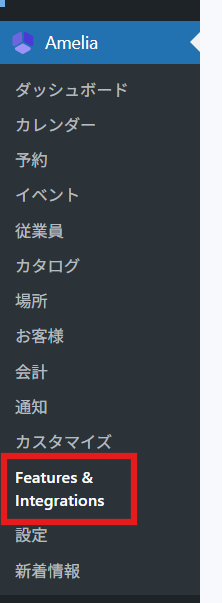
In the WordPress admin panel, click Amelia > Feature & Integration.
Set Recurring appointments to [Enable].
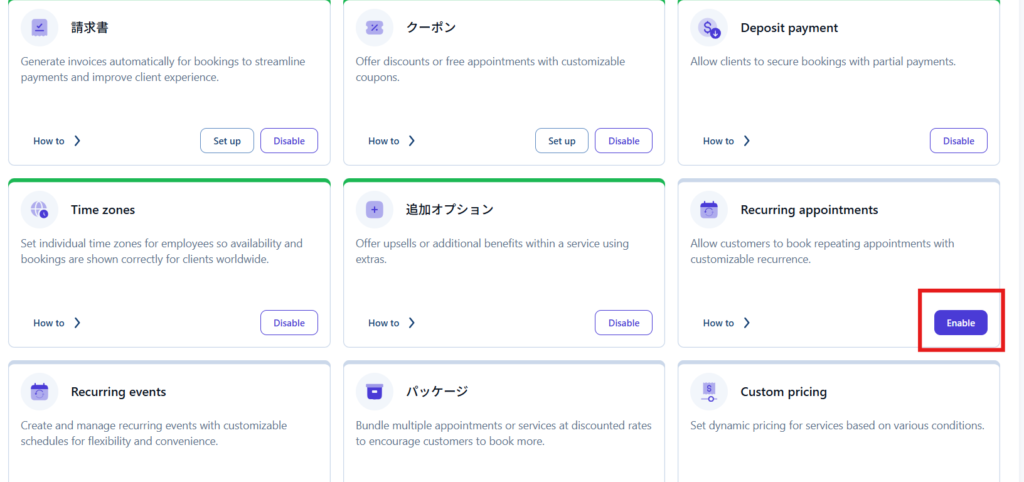
Where to set up regular services
When you turn on the Recurring appointments feature, a setting for recurring appointments will be added to the service settings.
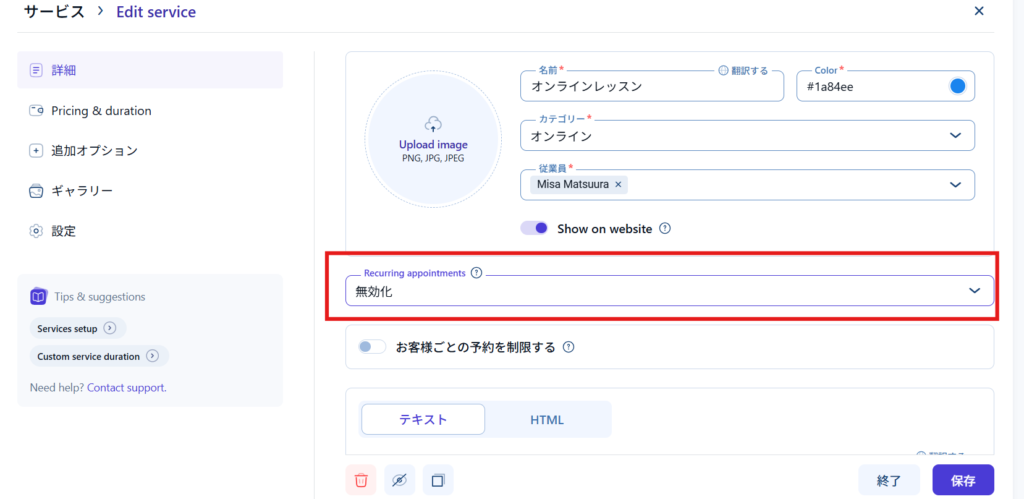
How to set up a recurring service appointment
The timing that can be set
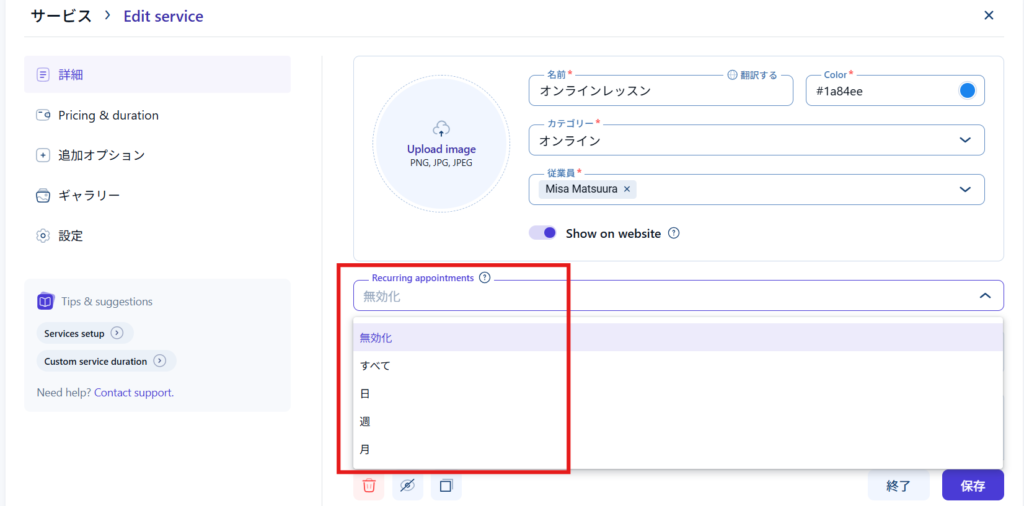
- All - Allows customers to select all of the following options: Day, Week, Month
- Day - Every x days, specific date, specific number of times
- Weekly - Weekly, multiple days of the week, specific end date, specific number of times
- Monthly - same date every month, same day of the week as the original reservation, specific end date, specific number of times
When recurring dates are unavailable
What to do if you can't schedule a recurring appointment
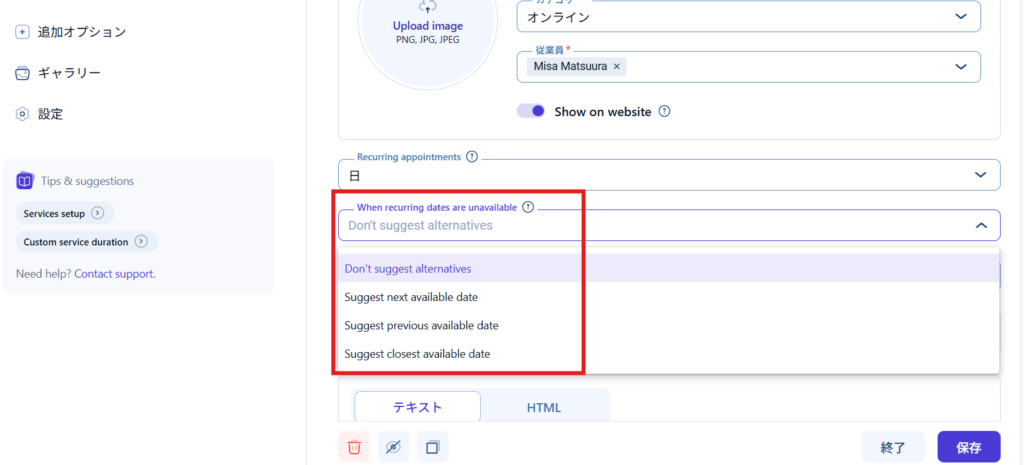
- Suggest next available date- The nearest date after the planned date
- Suggest previous available date- The closest date before the scheduled date
- Suggest closest available date- The closest date, including both dates
Recurring appointment payment
Set up payment methods for recurring reservations
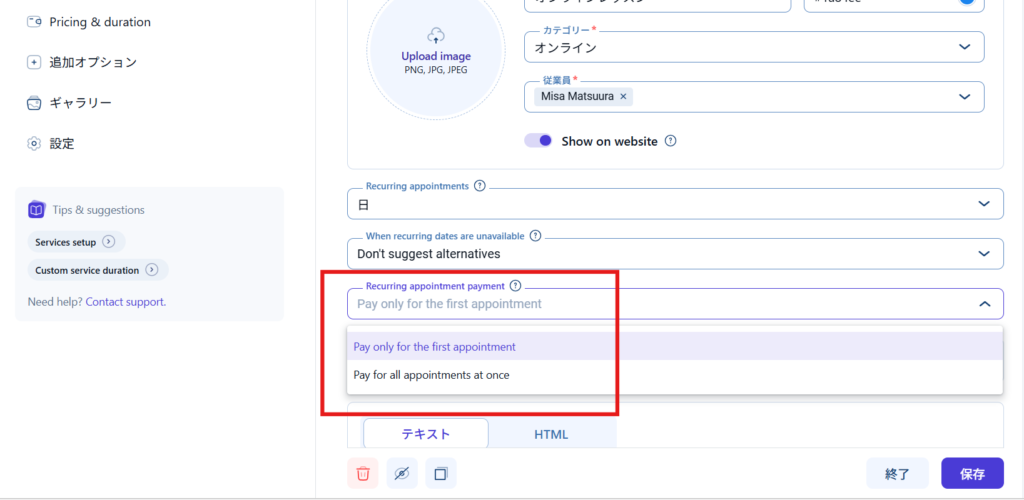
- Pay only for the first appointment- Pay only for your first booking
- Pay for all appointments at once- Pay for all your reservations
How recurring reservations appear on the booking form
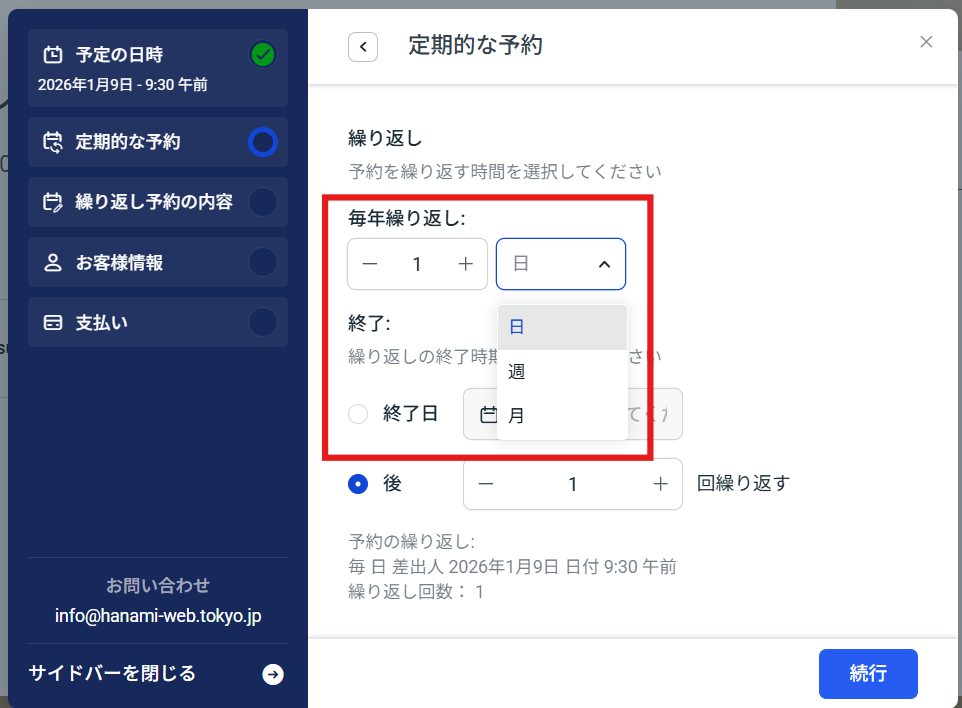
When you set up a recurring reservation, once you select a date, the repeat reservation option will appear.
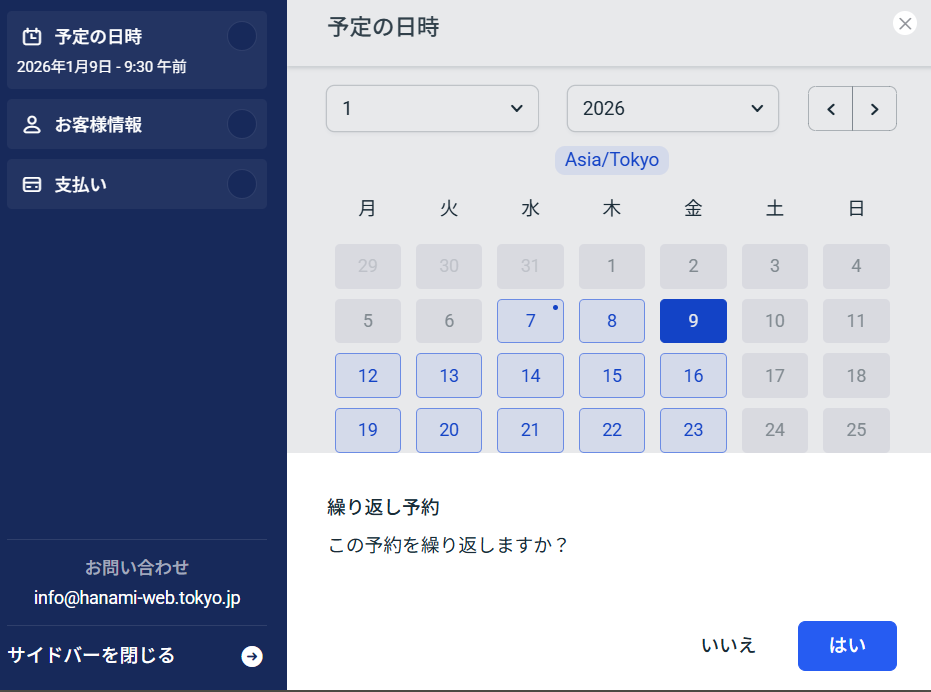
I will explain how it will look when everything is set up.
Set the recurrence timing by day, week, or month.
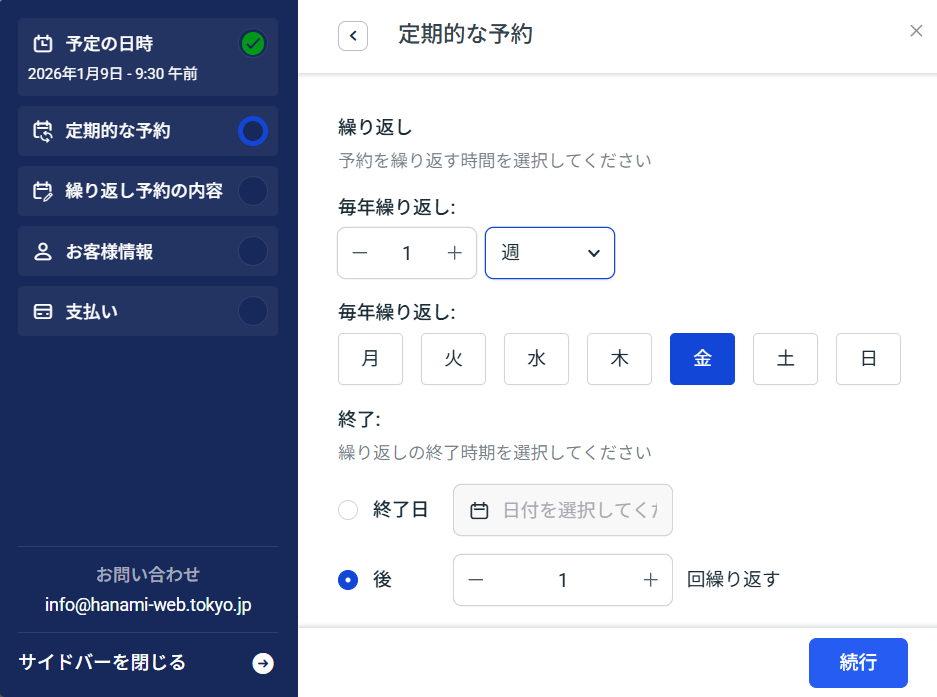
Once you select the week, you will be able to select the day of the week.
Set the end date or number of times.
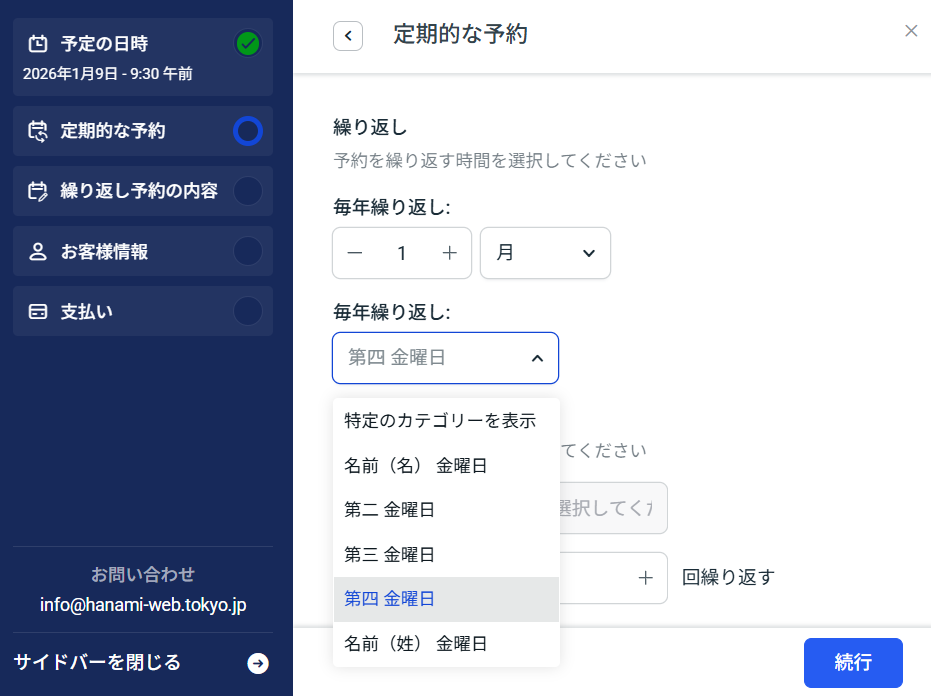
If you select Month, you can set the day of the week on which the reservation will be repeated every month on the same day of the week on which it was originally scheduled. For End, you can set a specific date or number of times.
Email notification settings
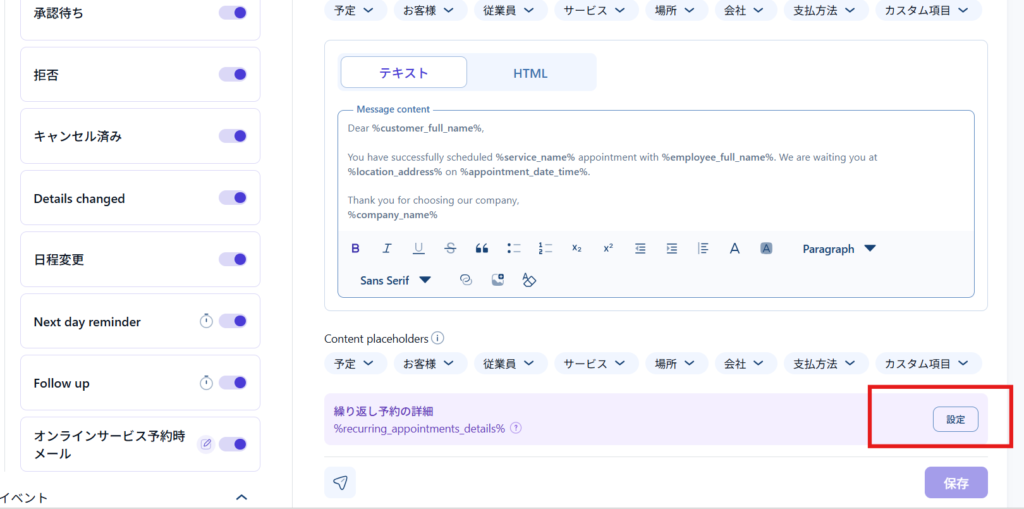
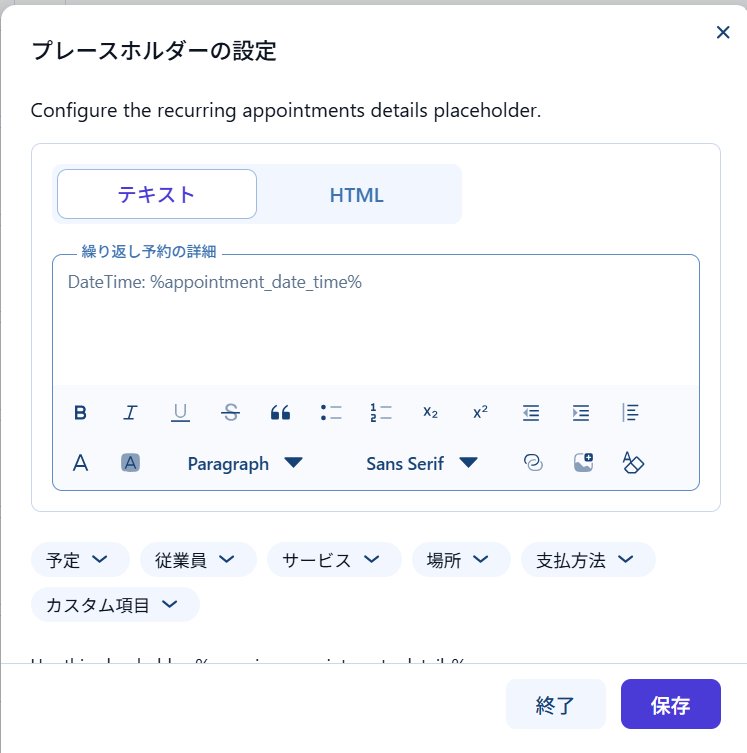
In Amelia > Notification Settings, under [Schedule], there is a placeholder that outputs details of repeating reservations.
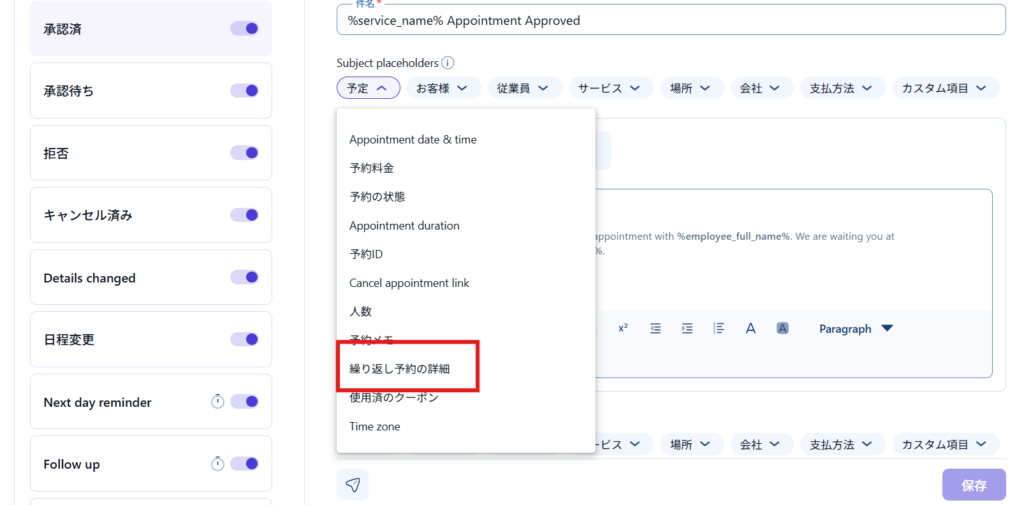
At the bottom, there is an item called "Repeating Reservation Details," where you can set the items to be output as placeholders in the email notification text.
Released as soon as the next morning! Weekends and holidays are also available!
Super rush website creation plan
We offer a rush website creation plan for those who need a website in a hurry!
We can publish your content as soon as the next morning, even on weekends and holidays! If you have any questions, please check the details below!

Latest Articles

How to Enhance EEAT with WordPress | Settings and Design Improvements Necessary for AI-Driven Traffic


[2026 Latest] How to check the number of visits from generated AI using GA4's exploration function

Error message: Allowed memory size of 268435456 bytes exhausted (tried to allocate 14684160 bytes) Error: On Lollipop
 English
  日本語
日本語