How to create a website using WordPress/How to use plugins/No-code construction blog



How to Prevent WordPress Tampering and Malware Infections, and How to Deal with Infections [Real-Life Experience Summary] "Anti-Malware Security"
At HanamiWEB Online School,
●Ask questions in real-time in the virtual study room!
●Ask as many questions as you want via chat!
●E-learning materials that you can learn as much as you want, 24 hours a day!
All included for just 2,500 yen/month!
"One day, our website was suddenly rewritten." This customer's complaint made me acutely aware of the importance of WordPress security measures. This article summarizes how to check for symptoms, how we actually removed malware and restored the site, and provides preventative measures based on our real-world experience.
Please use this as a reference.
WordPress tampering/malware infection symptom checklist
- The website display has been rewritten.
- Unfamiliar advertisements and links have been inserted.
- There is a warning in Google Search Console.
- The site suddenly stopped displaying.
- I can no longer log in.
If these symptoms appear, your WordPress site may have been tampered with or infected with malware.
WordPress tampering and malware infection removal with a plugin "Anti-Malware Security"
When your WordPress site is tampered with or infected with malware,Anti-Malware SecurityWhen using the plugin
- Files that have been added - Delete
- File that has been tampered with - Restoring to the correct file
They will do it for you.
To prevent re-tampering and malware infection
There is a world-famous security plugin called All in one Security. The paid version is $70/year for two sites (price as of 2024), so you can strengthen your security at a low price.
You can set up a schedule to automatically scan for malware. To use this feature, you need to purchase the paid version.
The paid versions of security plugins are quite expensive, so I think this is a good price.
I have introduced this in the blog post below, so please feel free to refer to it.
Secure your WordPress site at an affordable price: All in one Security Premium explained
Can I access the admin page even if my website is tampered with or infected with malware?
This is a procedure for site tampering that can be used to access the WordPress admin screen after your WordPress site has been tampered with or infected with malware.
If you can log in to the WordPress admin screen but are unable to add new plugins, you will first need to make sure you can access the admin screen.
- Log in to the server and open the file manager.
- Find the time period when multiple files were updated at the same time
- Restore from a server backup to a previous date
- after that,Anti-Malware SecurityCheck for tampered files with a plugin
- If there is a problem, restore the system. If there is no problem, review the security measures.
Server backup is important. xserver includes server backup so it's one of the recommended servers!
When restoring from a server backup of xserver, the page sometimes gave a 403 error.
Settings > Permalink Settings
I clicked and refreshed the URL on my WordPress site and it was restored!
Site recovery procedure using the WordPress site tampering and malware infection removal plugin "Anti-Malware Security"
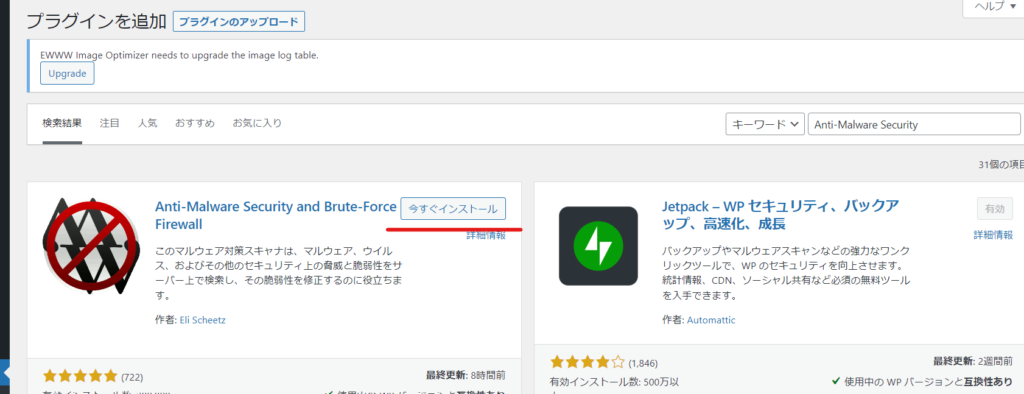
First, install the Anti-Malware Security plugin from the WordPress admin panel.
- Plugin
- New additions
- Enter "Anti-Malware Security" in the keywords
- Install now
- activation
To do.
Register your free key to "Anti-Malware Security"
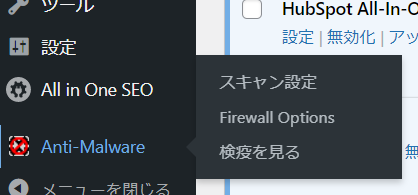
First, you need to issue a free key for Anti-Malware Security. After activating the Anti-Malware Security plugin, click on "Anti-Malware" in the added left sidebar and open "Scan Settings".
Click on "Get your free key" on the right.
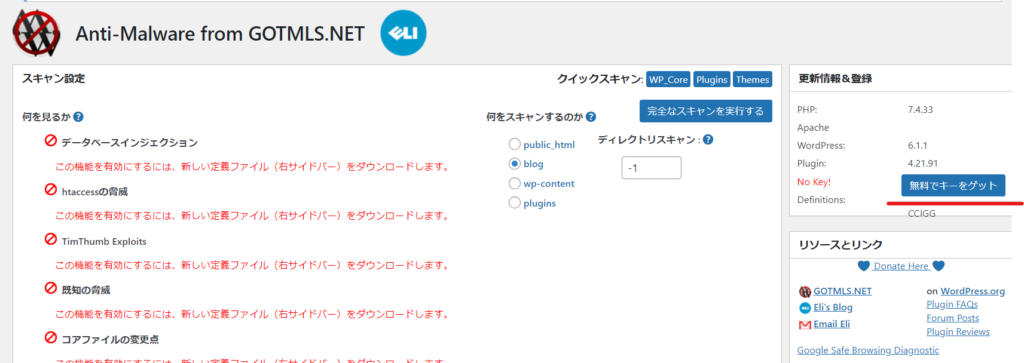
Enter the required information and click the [Register Now] button.
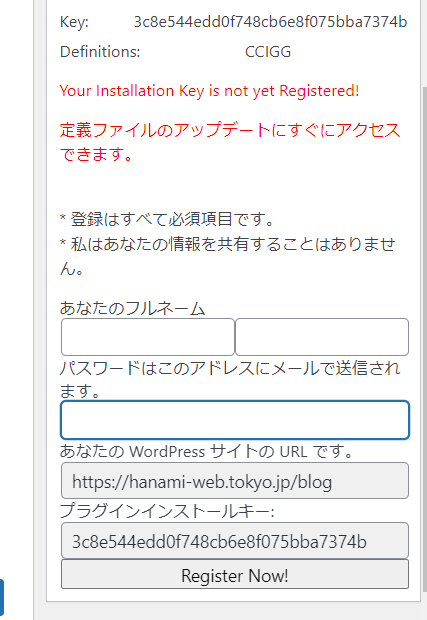
Download new definition files
Once you have completed your Anti-Malware Security registration, click "Download new definitions!"
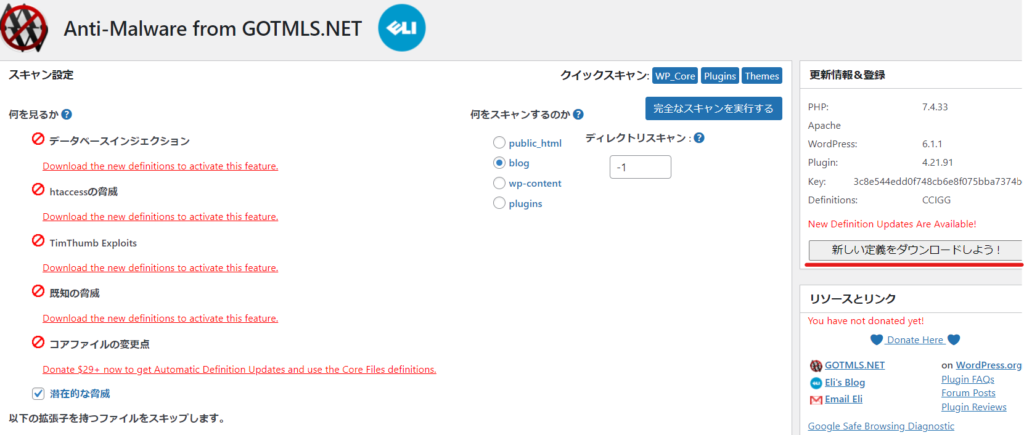
Tampering and virus scanning of all files in WordPress
- What to watch - Check all
- What to scan - Specify the folder where WordPress is located
- Finally, click on "Run a full scan"

It's in progress, it will take some time so just let it run and leave it.
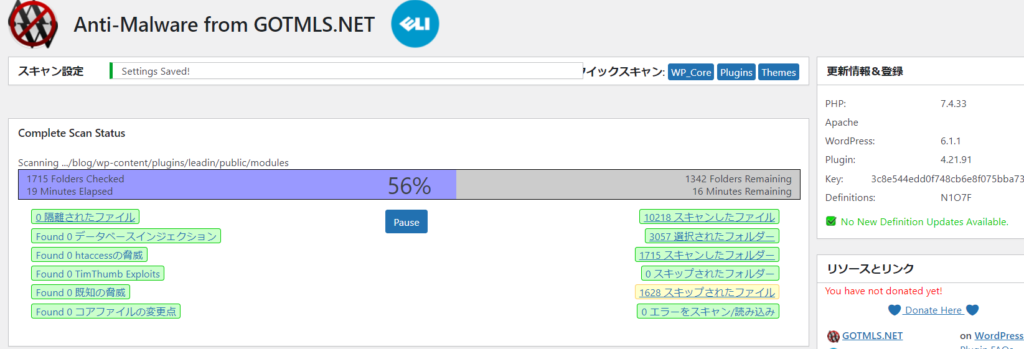
The project was completed successfully.
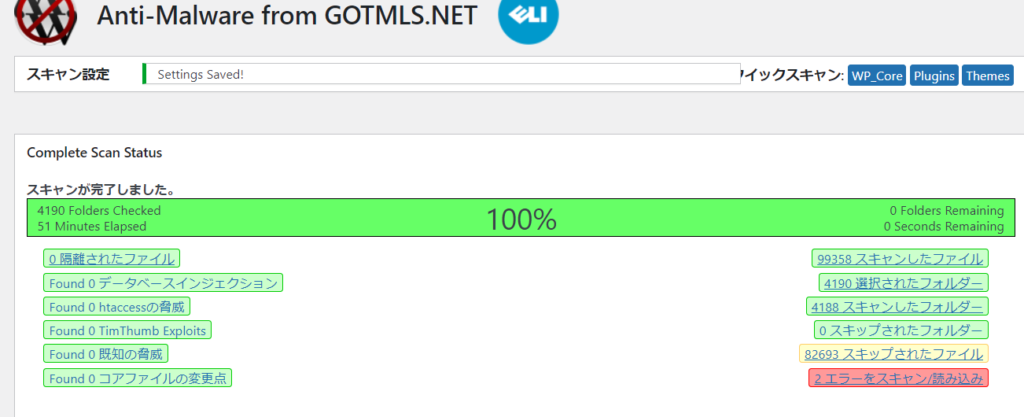
WordPress malware detection cases
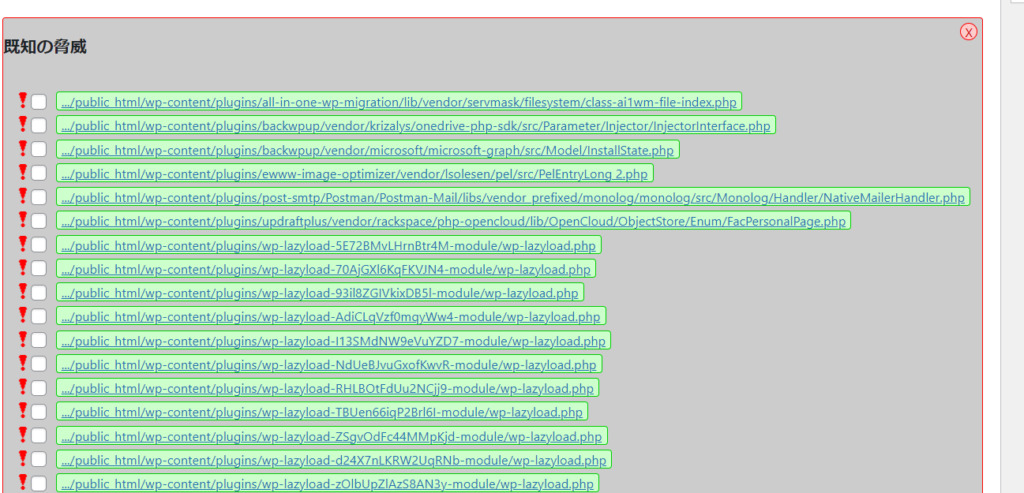
This is an example detected by Anti-Malware Security.
Check the detected files and click "Automatically fix selected files."
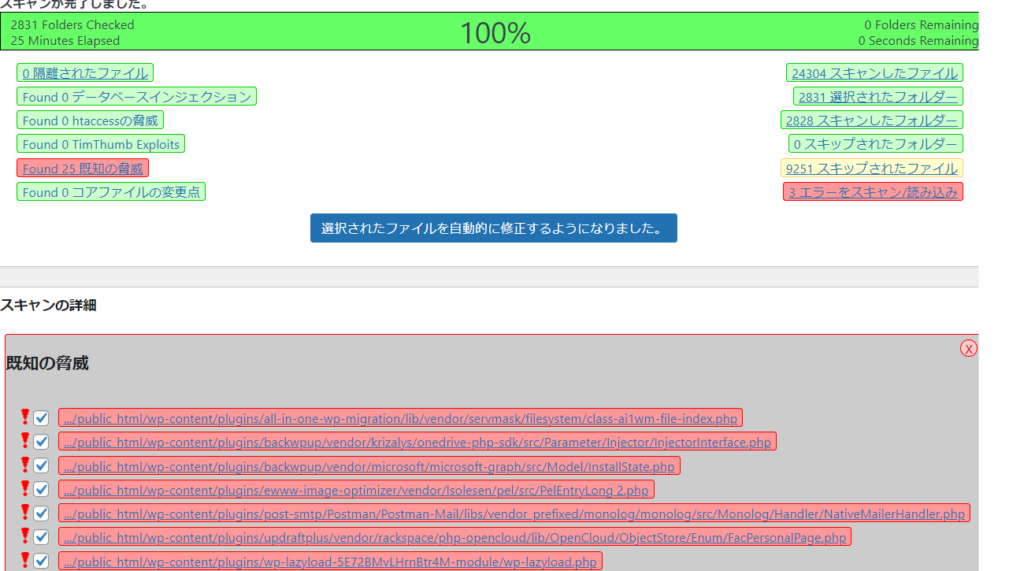
When it turns green, the eradication is complete.
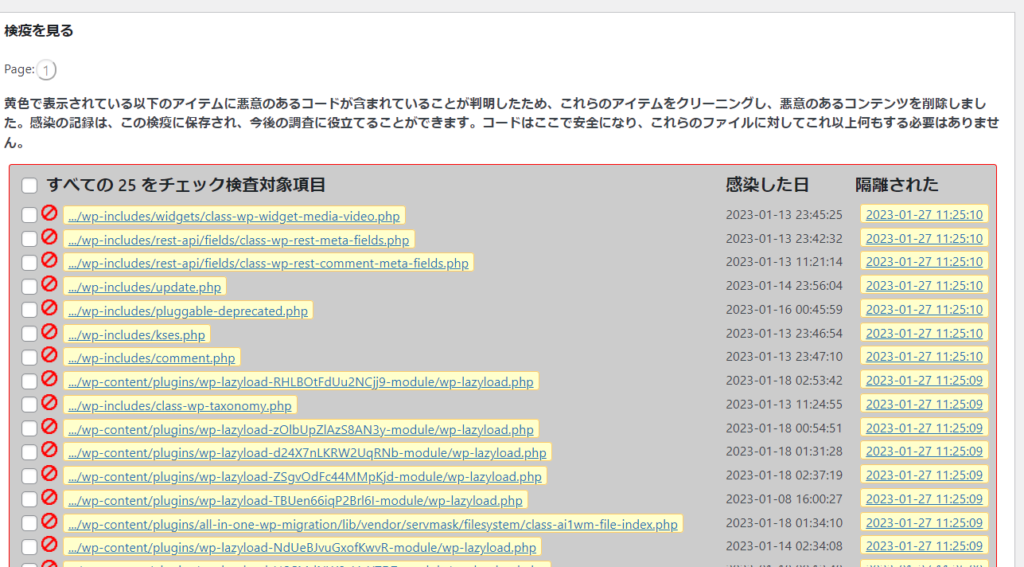
Anti-Malware > View Quarantine
When I checked this, the date of infection was displayed. It's amazing that it can tell you something like that. I started to get infected on the 13th, and I noticed something strange on the management screen on the 27th. It had been dormant for about two weeks.
Anti-Malware Security malware removal measures
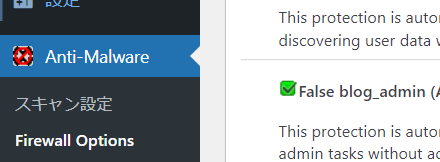
There are various security plugins available, and Anti-Malware Security also has a Firewall Option that provides automatic protection from attacks.
- Automatically prevents hackers from accessing parent directories
- Ability to prevent dangerous files from being uploaded via web scripts
- Features that protect access to user data
How can I strengthen the security of my WordPress site?
- Keep your WordPress plugins up to date.
- Set up regular backups
- Install security plugins
- Change login URL
- Remove unnecessary plugins
- We will outsource regular maintenance to a website specialist.
The importance of "maintenance and management" to prevent malware infections.
Many WordPress security incidents stem from missed updates or the neglect of unnecessary plugins. Regular maintenance can significantly reduce these risks.
At HanamiWEB,
- Regular plugin updates
- Setting up and managing regular backups
- Check security settings
- Emergency response in case of malfunction (display corruption, restoration, etc.)
We can handle this. Please feel free to contact us if you have any problems.
For those who have forgotten the URL of their WordPress admin panel and cannot log in.
If you've forgotten your WordPress admin login URL and are unable to log in, please refer to our video and blog post which explain how to log in.
How to log in to the WordPress admin panel and find the URL [Complete guide for beginners]
How to forcibly create a login user using FTP
If you've forgotten who the logged-in user is, you can also forcibly add a user using FTP. Please refer to this article for more details.
How to log in to the WordPress admin panel and find the URL [Complete guide for beginners]

We are available on weekends and holidays!
Please contact us if you have any problems with your website!
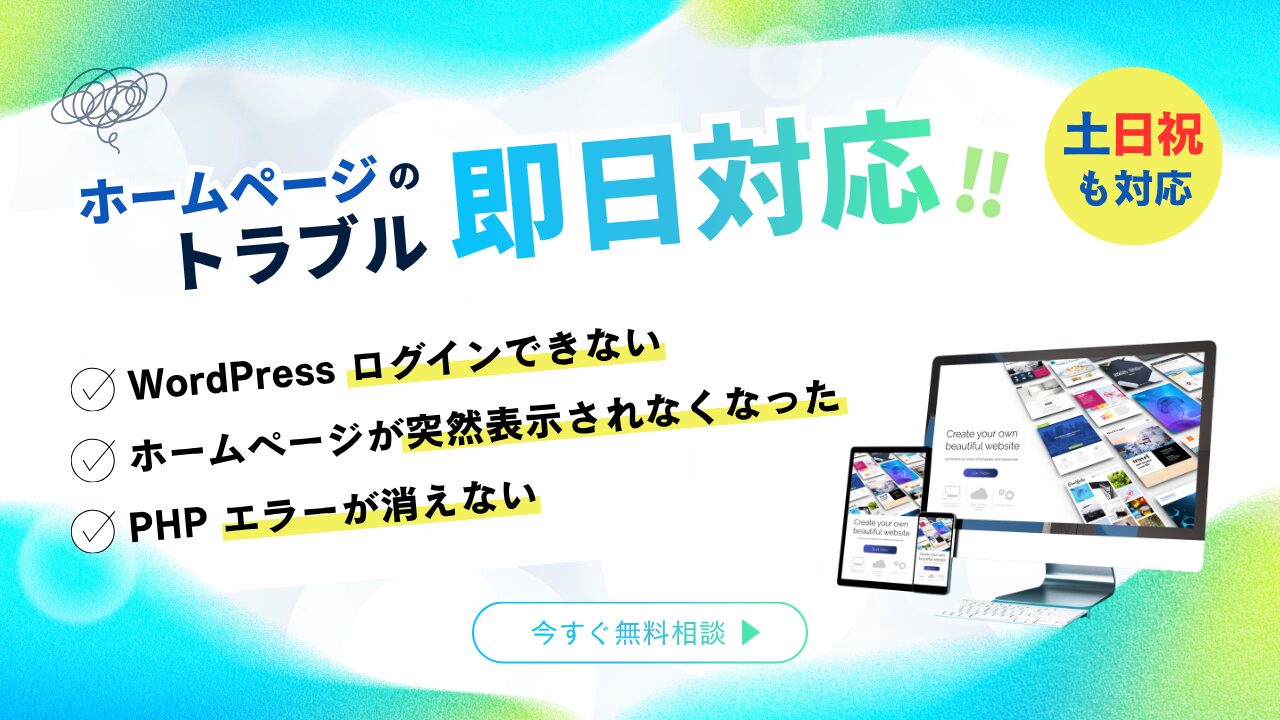
- Unable to log in to WordPress
Malware infection?
- The homepage suddenly stopped displaying!
- A PHP error is occurring.
We also offer support on weekends and holidays for those who need assistance.
If you are in a hurry, please call us now at 03-6694-7024.
Latest Articles

A PHP error is displayed on my WordPress site, preventing the site from displaying (wp-includes/block-patterns.php on line 38).

Nerima Ward: Ranked 2nd in website creation | Explanation of how to create a website that gets cited by AI
What is website update outsourcing? A clear explanation of costs, market rates, and how to request their services.
 English
  日本語
日本語