How to create a website using WordPress/How to use plugins/No-code construction blog



WordPress Security Enhancement Plugin All in one WP Security ~ File Protection Feature Explained
At HanamiWEB Online School,
●Ask questions in real-time in the virtual study room!
●Ask as many questions as you want via chat!
●E-learning materials that you can learn as much as you want, 24 hours a day!
All included for just 2,500 yen/month!
A must-read for those who are concerned about the security of their WordPress site
We explain how to enhance security with the free All in one WP Security plugin.
This time, we will explain the File security > File Protection settings.
For more information, please see the All in one WP Security explanation table of contents!
There's an article that describes the steps taken to remove malware and restore a WordPress site after it was actually compromised by malware. Please refer to it.
→How to Prevent WordPress Tampering and Malware Infections, and How to Deal with Infections [Real-Life Experience Summary] "Anti-Malware Security"
What are All in one WP Security File Protection settings?
In the All in one WP Security File Protection settings:
- Preventing Access to WordPress Files
- Stop direct linking of image paths
- Disable editing of PHP files
You can set it in the following places:
- WP Security
- File Security
- File protection
and set it up.
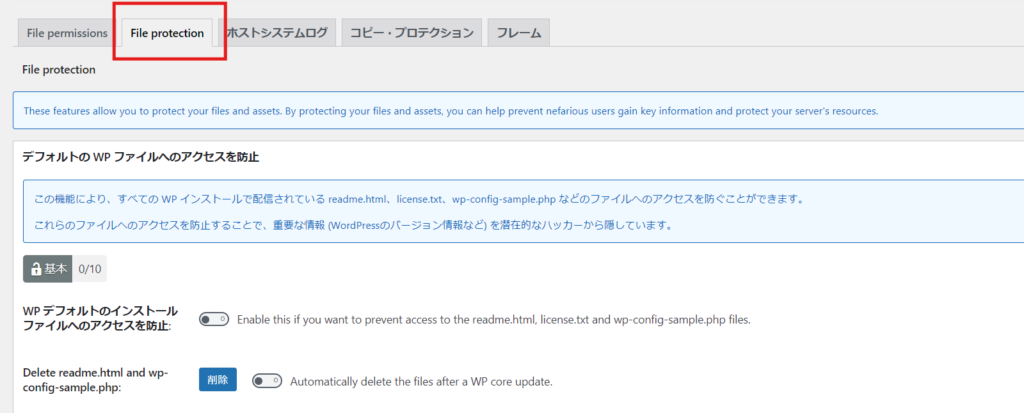
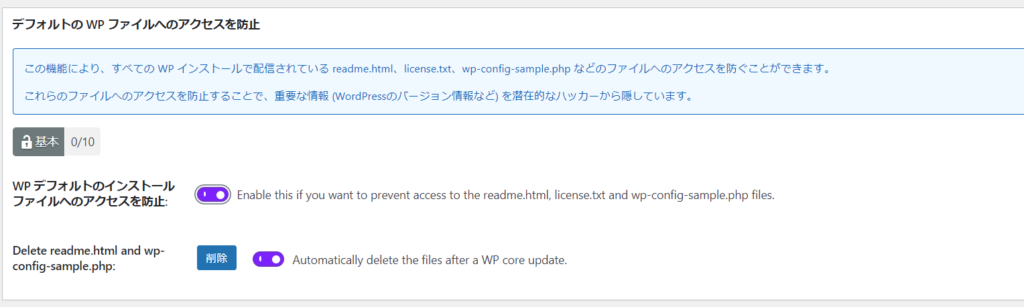
Preventing access to default WP files
This is a function to prevent access to the WordPress installation folder. It is set to OFF by default, so we recommend that you set it to ON.
Also, the "Delete readme.html and wp-config-sample.php" at the bottom is a function that deletes the unused file "wp-config-sample.php" that is included in the initial files, so turn this on and click "Delete".
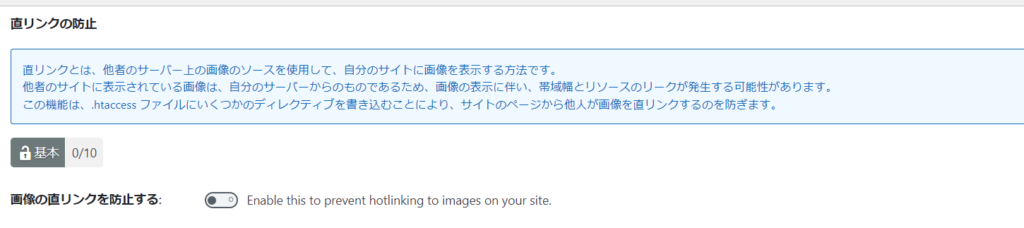
Preventing direct linking of images
This function prevents images uploaded to your site from being used on other sites using the URL. It is set to OFF by default, so we recommend setting it to ON.
Disable PHP file editing
WordPress has a feature that allows you to edit PHP files from the administration screen. This function is turned off.
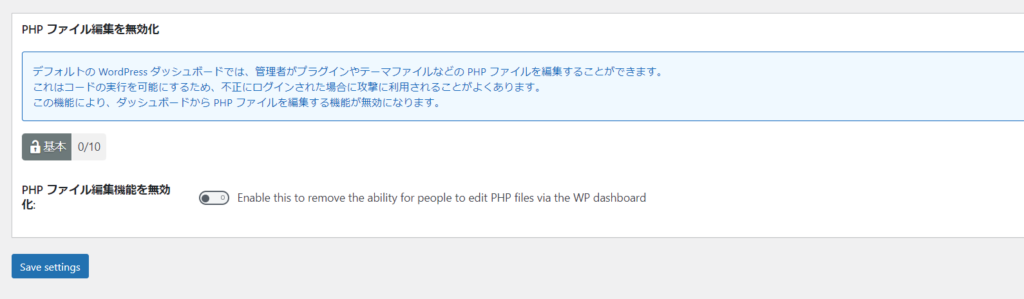
For example, by default when you open Appearance > Theme File Editor you can edit PHP files.
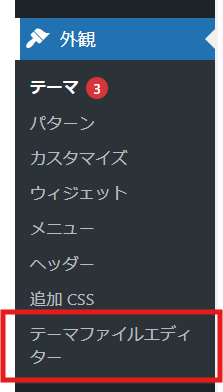
When this setting is turned ON, the editor access items disappear.


We are available on weekends and holidays!
Please contact us if you have any problems with your website!
- Unable to log in to WordPress
Malware infection?
- The homepage suddenly stopped displaying!
- A PHP error is occurring.
We also offer support on weekends and holidays for those who need assistance.
If you are in a hurry, please call us now at 03-6694-7024.
Latest Articles

[Anti-Fraudulent Login Prevention] Is your WordPress user ID visible to external parties? We explain how to check and security measures to hide your user ID!
Timing and Process for Renewing Your Recruitment Website | Key Points to Review to Increase the Number of Applications
 English
  日本語
日本語