How to create a website using WordPress/How to use plugins/No-code construction blog



Explaining how to set up the WordPress booking system plugin Amelia (9.x and later)
At HanamiWEB Online School,
●Ask questions in real-time in the virtual study room!
●Ask as many questions as you want via chat!
●E-learning materials that you can learn as much as you want, 24 hours a day!
All included for just 2,500 yen/month!
This article explains how to use Amelia, a WordPress plugin that allows you to create a homepage with a reservation system.
In the major update in December 2025, the UI of the admin screen changed significantly in versions 9.x and later. We will explain the new version!
This time, we will explain how to set up the Amelia service.
Amelia service settings
First, let's explain how to set up Amelia.
After activating the plugin, Amelia-related settings will be added to the left sidebar.
Open the Catalog.
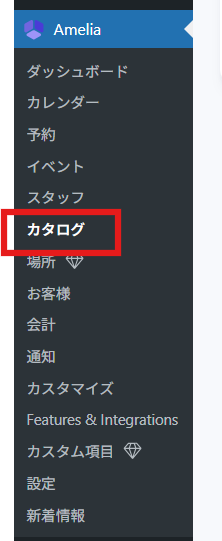
Amelia Catalog Category Settings
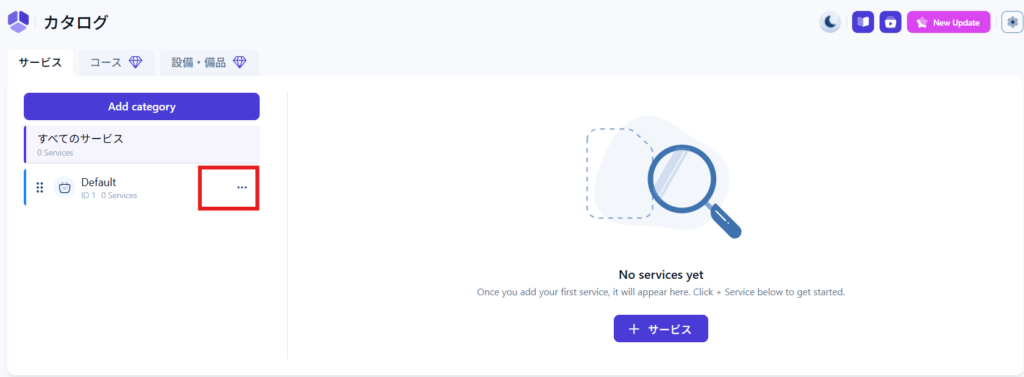
First, set up your categories from Amelia > Catalog.
First, edit the categories that are added by default.
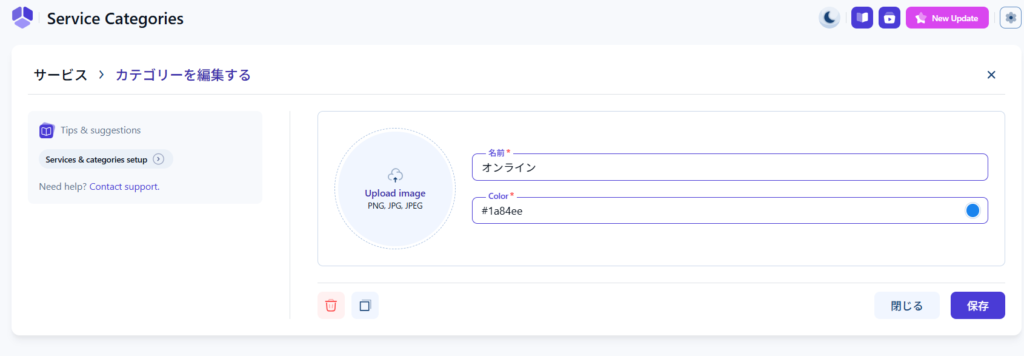
- image
- name
- color
Set the following:
If you want to add something, click [Add category].
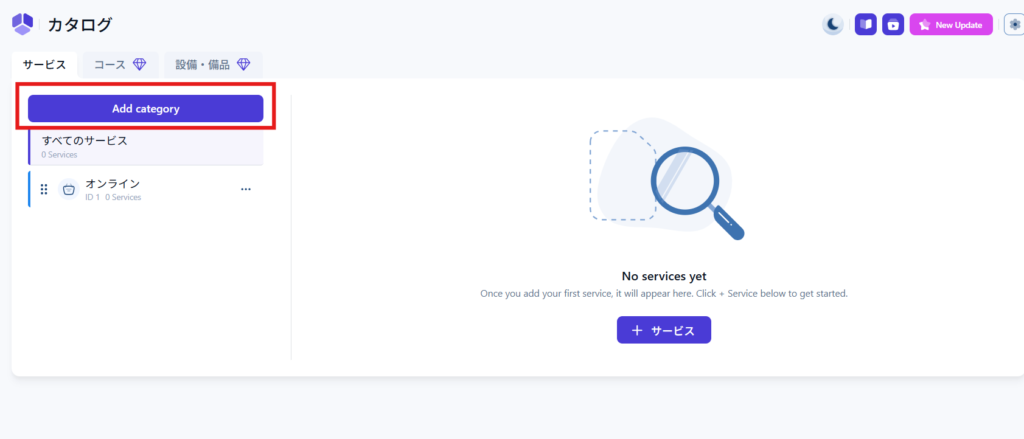
Adding services
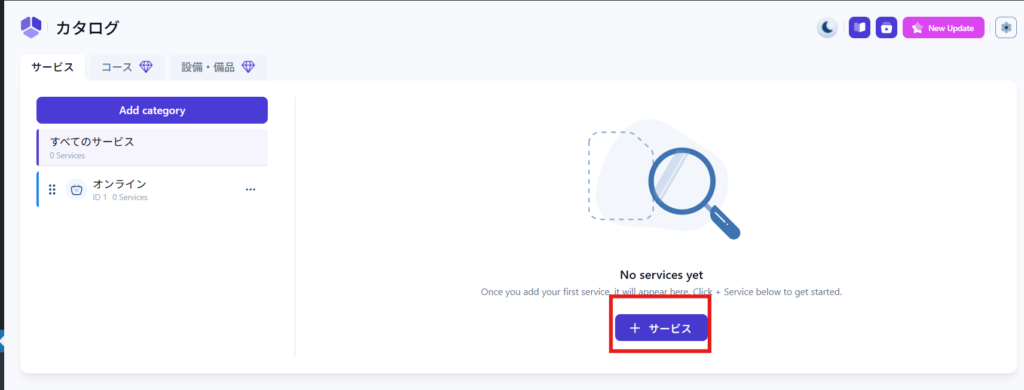
Click the [+] service button to add a service for which you want to accept reservations.
Services > Details
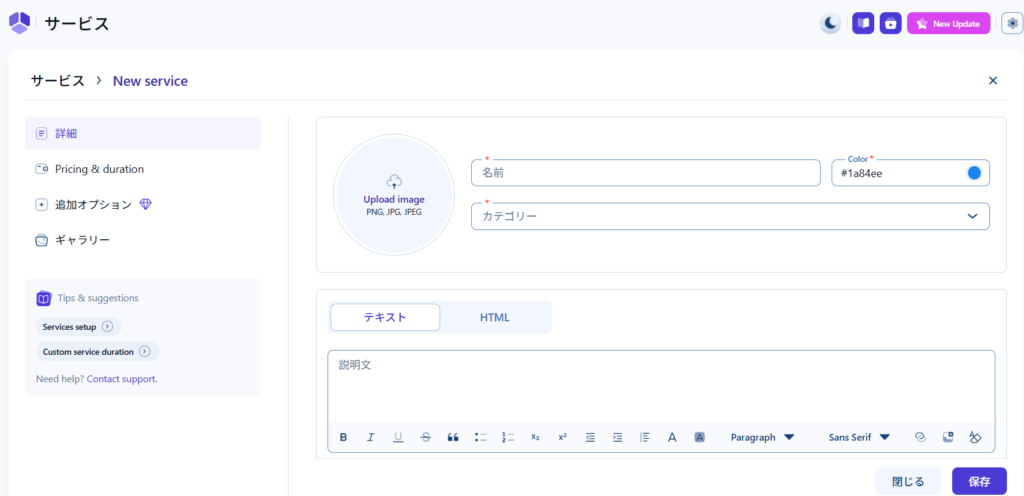
- image
- Service name
- color
- Categories
- Text - The content written here can be used in email notifications
Services > Pricing & duration
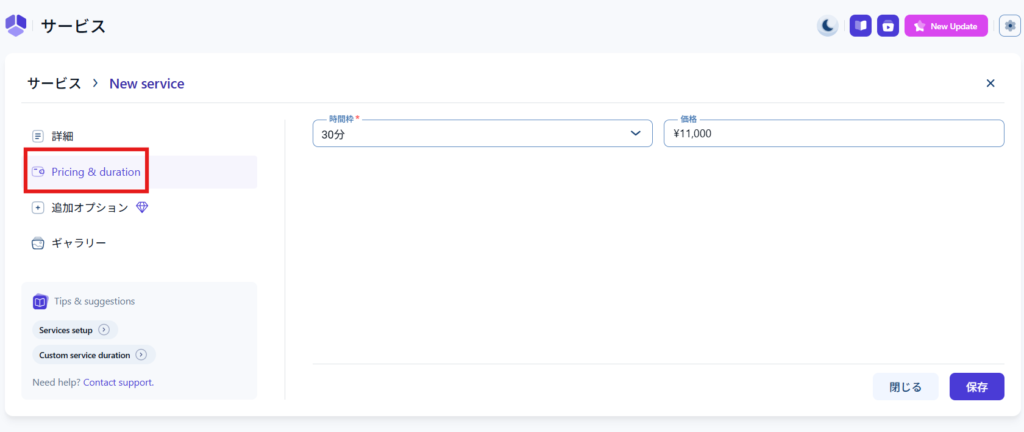
Set the time and price for your service.
The service time can be set in Amelia > Settings > Basic Settings > Default time slot step
You will be able to select based on the time slot you set in, so if the time slot you want does not appear, please adjust this setting.
Click here for explanatory article
→Home Reservation System WordPress Reservation System Plugin Amelia Basic Settings Explained (9.x and later)
If the price remains at $, please set the price first.
Click here for explanatory article
→How to set up the WordPress booking system plugin Amelia Payments (9.x and later)
Linking staff and services
Once a service is created, the staff will decide who will be in charge of it.
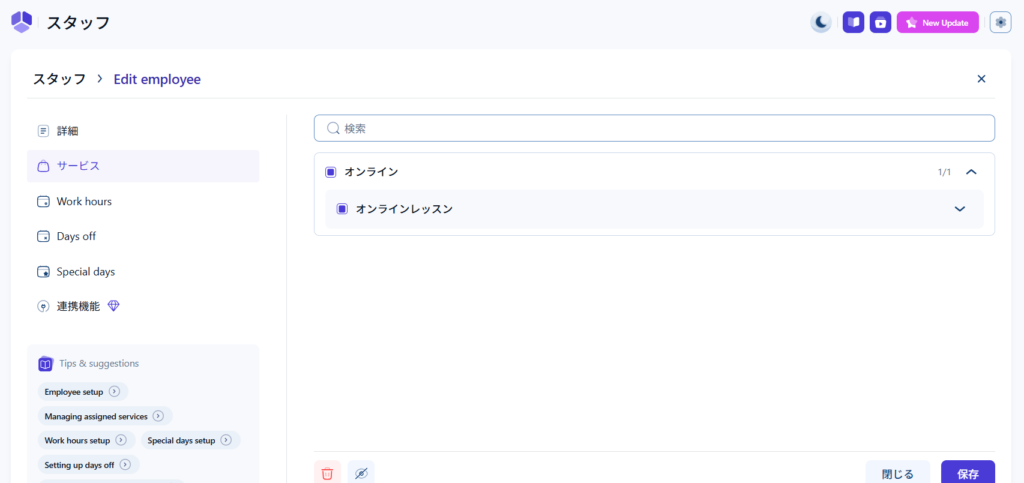
Staff > Staff Edit > Services
Then, check the services that the staff member will be responsible for.
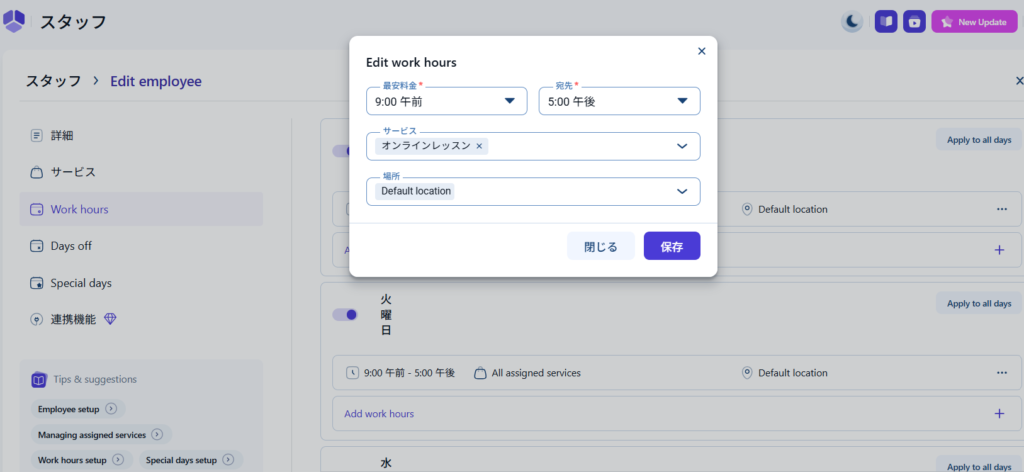
Even in Work Hours, you can set in detail which services each shift will be responsible for.

We are available on weekends and holidays!
Please contact us if you have any problems with your website!
- Unable to log in to WordPress
Malware infection?
- The homepage suddenly stopped displaying!
- A PHP error is occurring.
We also offer support on weekends and holidays for those who need assistance.
If you are in a hurry, please call us now at 03-6694-7024.
Latest Articles
Timing and Process for Renewing Your Recruitment Website | Key Points to Review to Increase the Number of Applications
7 Key Points for Creating a Recruitment Website | How to Create a Recruitment Site That Job Seekers Will Choose
What is the average cost of a recruitment website? A thorough explanation of pricing by production method.
 English
  日本語
日本語