How to create a website using WordPress/How to use plugins/No-code construction blog



How to set up WooCommerce with the LMS plugin TutorLMS
At HanamiWEB Online School,
●Ask questions in real-time in the virtual study room!
●Ask as many questions as you want via chat!
●E-learning materials that you can learn as much as you want, 24 hours a day!
All included for just 2,500 yen/month!
I am researching LMS plugins to create an e-learning system using WordPress. I am introducing the paid version of the TutorLMS plugin. Since I want to create a full-fledged system, I am comparing the features of the paid version.
This time, we will explain how to install WooCommerce, which is the payment part of TutorLMS.
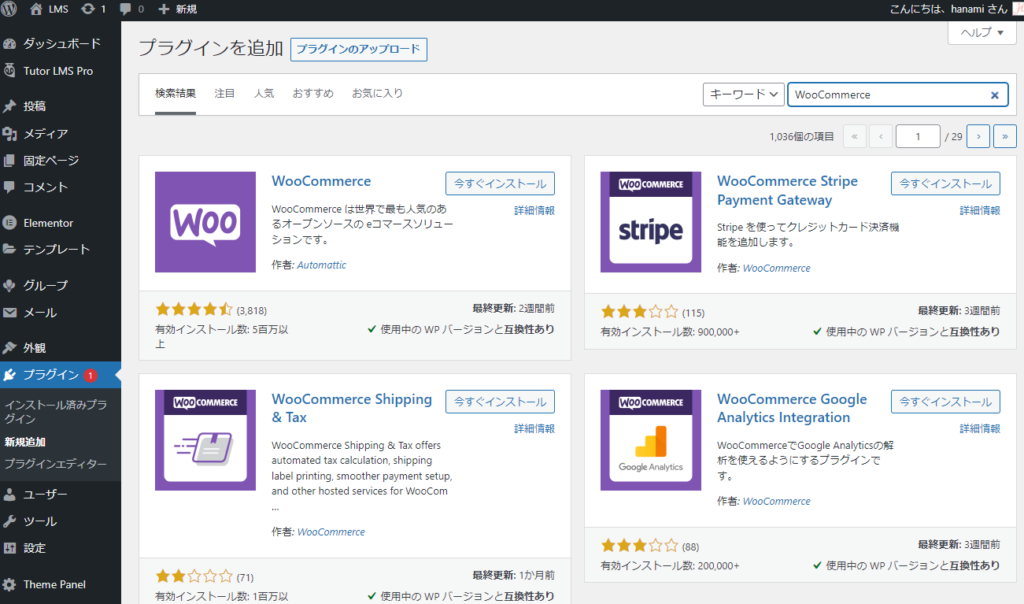
WooCommerce Installation
- Plugin
- New additions
- Enter "WooCommerce" in the keywords
- Install now
- activation
To do.
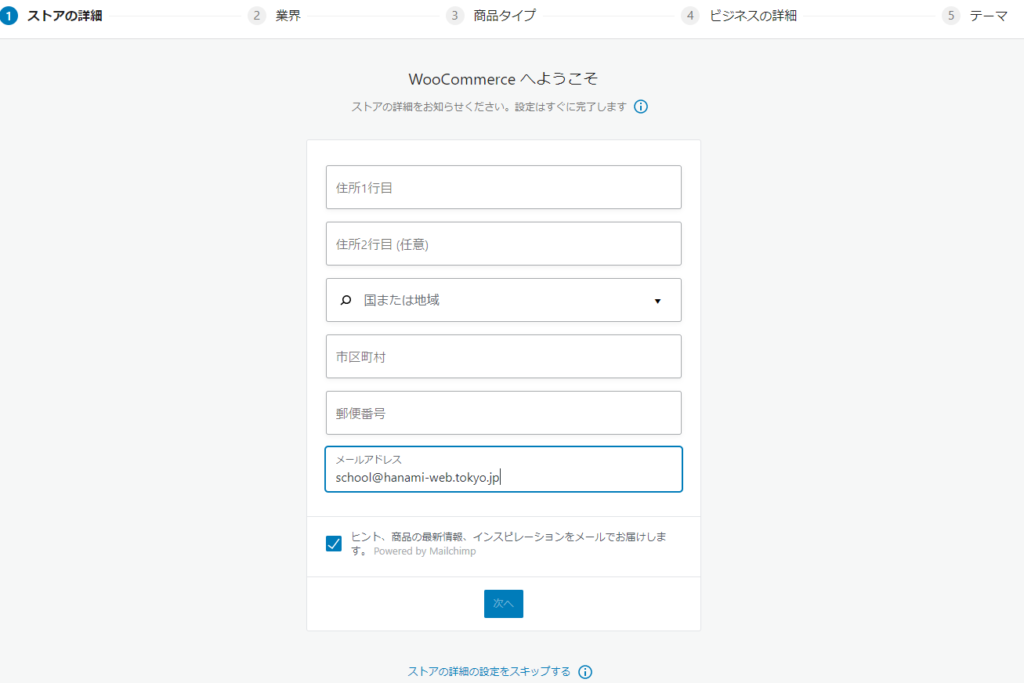
Enter store information
I'll enter the information
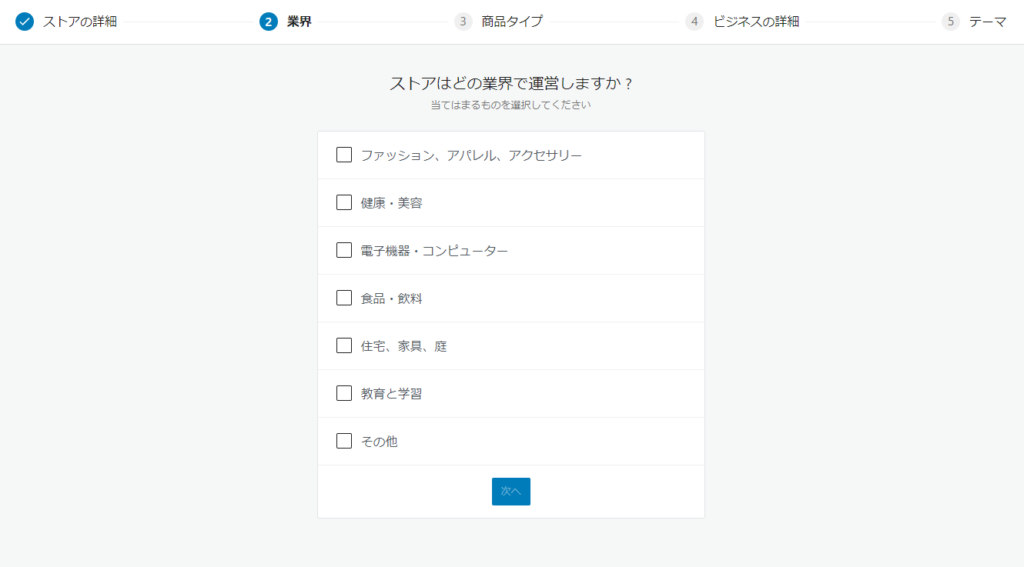
Select industry
Product Type
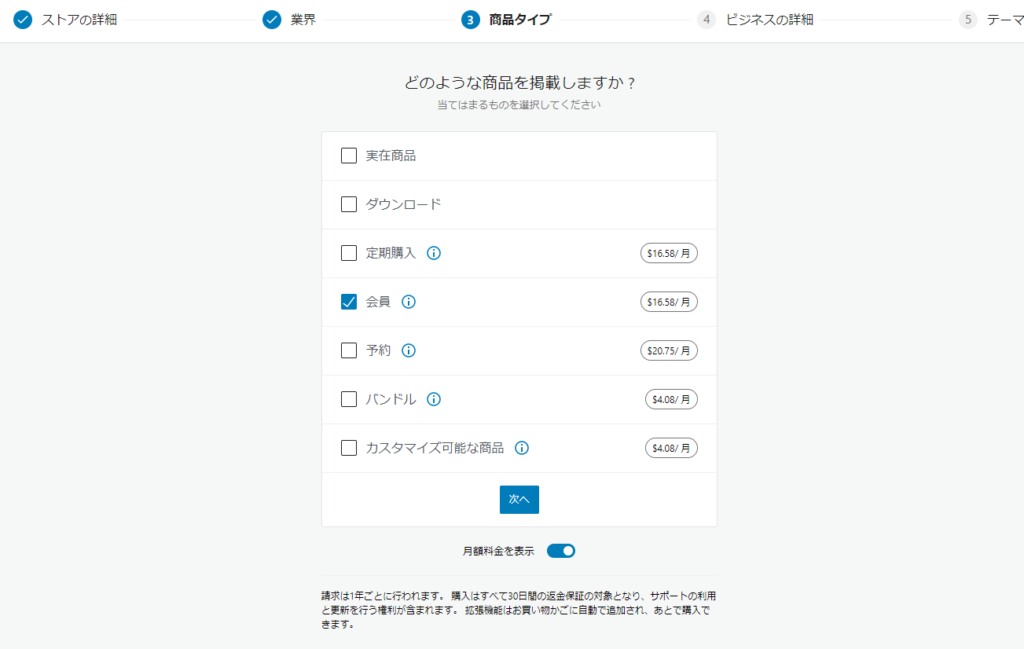
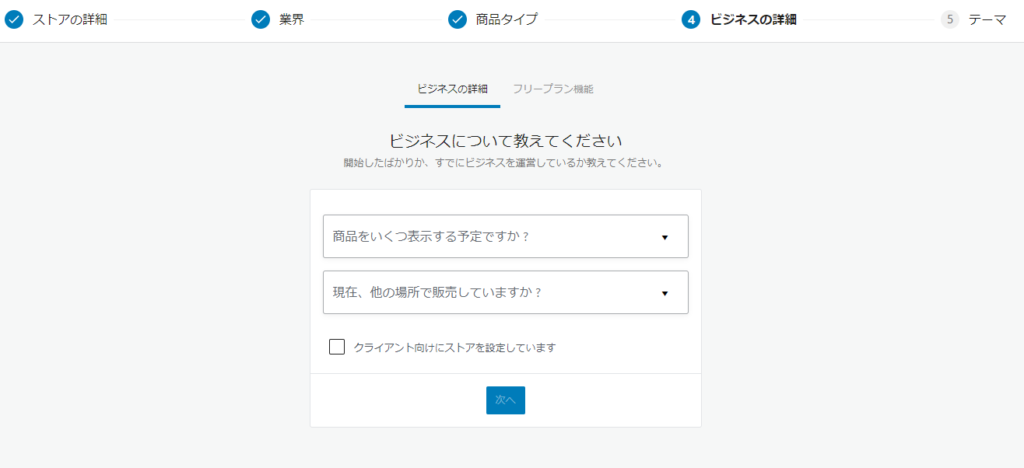
Business Information
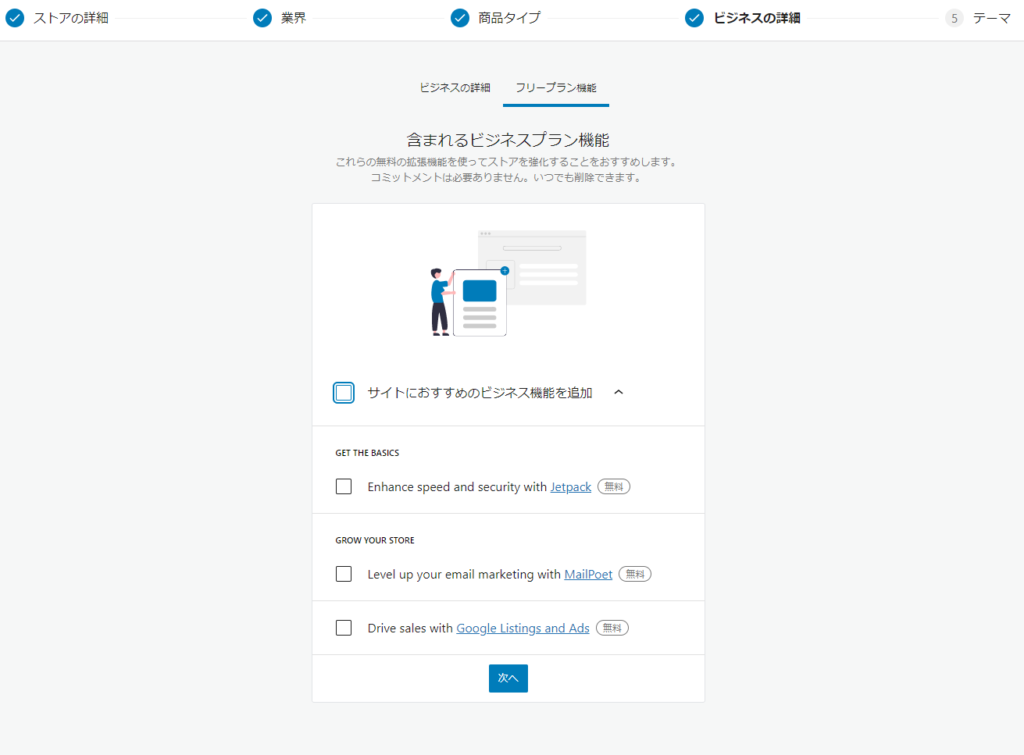
Check for additional features
It is checked by default, so if you proceed to the next step, all of the plugins introduced here will be installed.
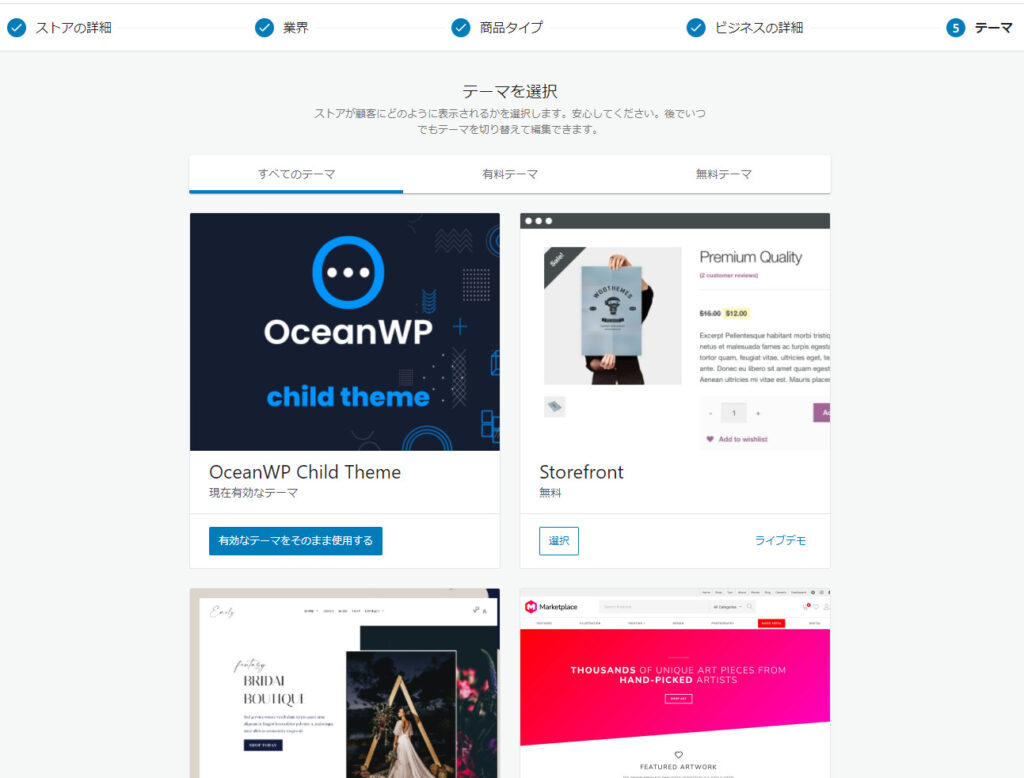
Theme Selection

We are available on weekends and holidays!
Please contact us if you have any problems with your website!

- Unable to log in to WordPress
Malware infection?
- The homepage suddenly stopped displaying!
- A PHP error is occurring.
We also offer support on weekends and holidays for those who need assistance.
If you are in a hurry, please call us now at 03-6694-7024.
Latest Articles


Timing and Process for Renewing Your Recruitment Website | Key Points to Review to Increase the Number of Applications

7 Key Points for Creating a Recruitment Website | How to Create a Recruitment Site That Job Seekers Will Choose

What is the average cost of a recruitment website? A thorough explanation of pricing by production method.
 English
  日本語
日本語