How to create a website using WordPress/How to use plugins/No-code construction blog



How to enable BuddyPress functionality with the LMS plugin TutorLMS
At HanamiWEB Online School,
●Ask questions in real-time in the virtual study room!
●Ask as many questions as you want via chat!
●E-learning materials that you can learn as much as you want, 24 hours a day!
All included for just 2,500 yen/month!
I am researching LMS plugins to create an e-learning system using WordPress. I am introducing the paid version of the TutorLMS plugin. Since I want to create a full-fledged system, I am comparing the features of the paid version.
This time, we will explain how to add the BuddyPress function, which is a feature of the paid version of TutorLMS.
What is BuddyPress?
This is a plugin that allows you to build a membership-based SNS site on your own site. The main functions are
- User follow function
- Send a private message
- Creating a group forum
This is the main purpose of adding BuddyPress functionality to TutorLMS.
Install BuddyPress
First, install and activate the free BuddyPress.
- Plugin
- New additions
- Enter [BuddyPress] in the keyword field
- install
- activation
To do.
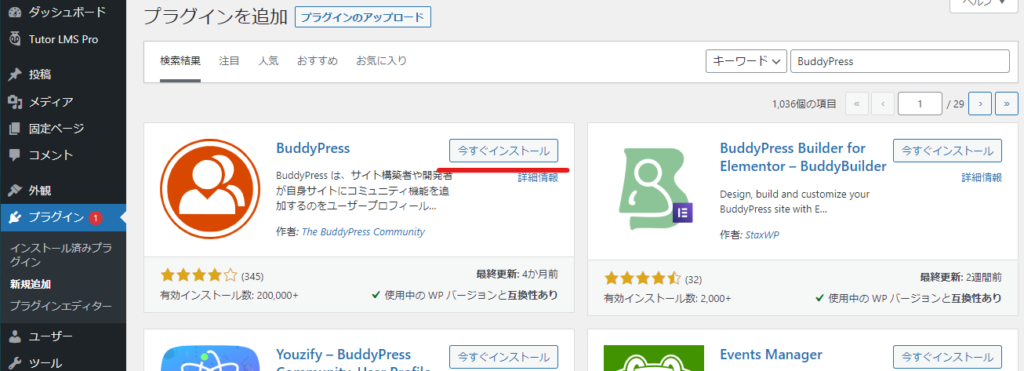
Added BuddyPress features
- TutoeLMS
- Add-ons
- BuddyPress
Turn it ON.
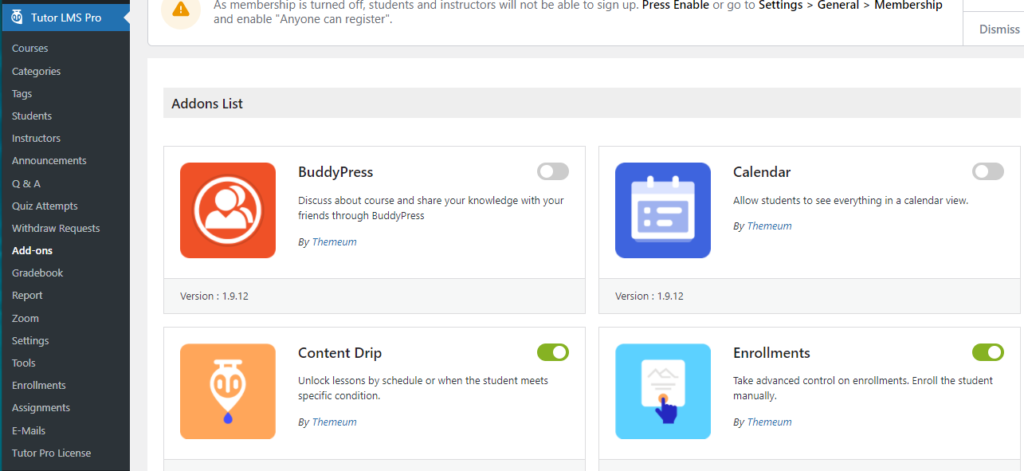
BuddyPress Feature Settings
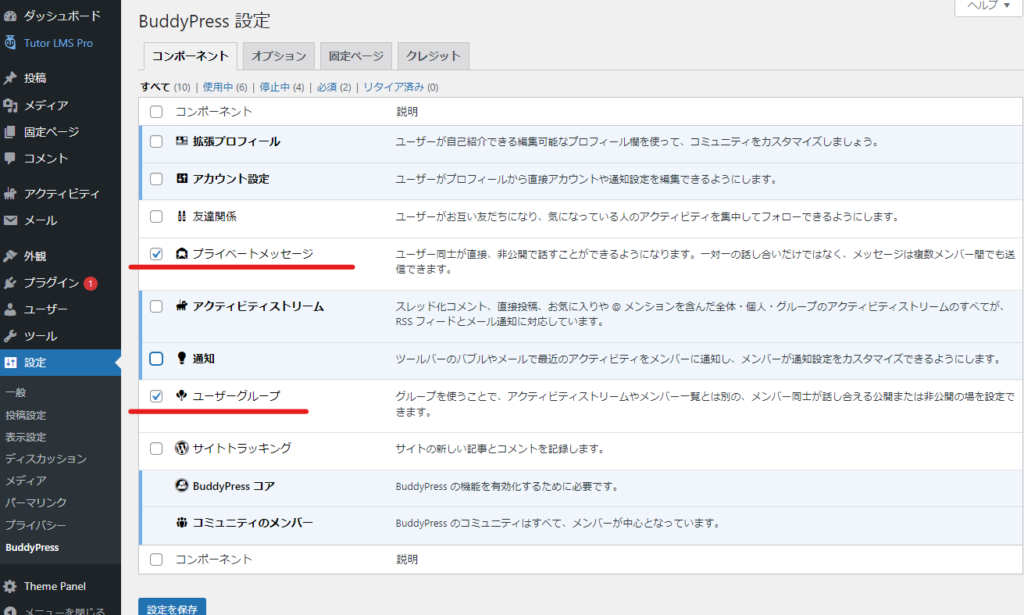
- WordPress Dashboard Settings
- BuddyPress
Turn on the necessary features. The required items to use BuddyPress with TutorLMS are
- Private Message
- User Groups
Be sure to check these two boxes.
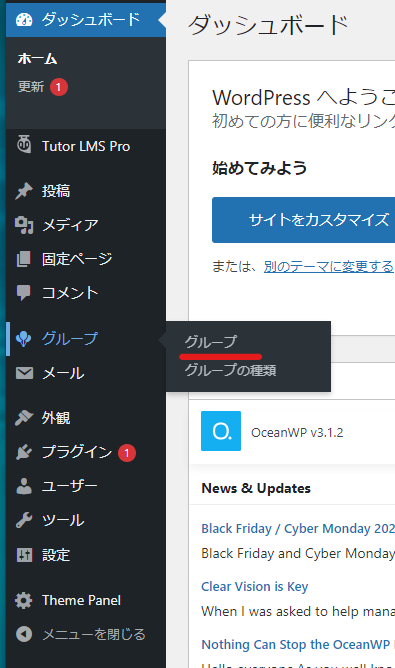
How to Create a Group in BuddyPress
- group
- group
Create a group in
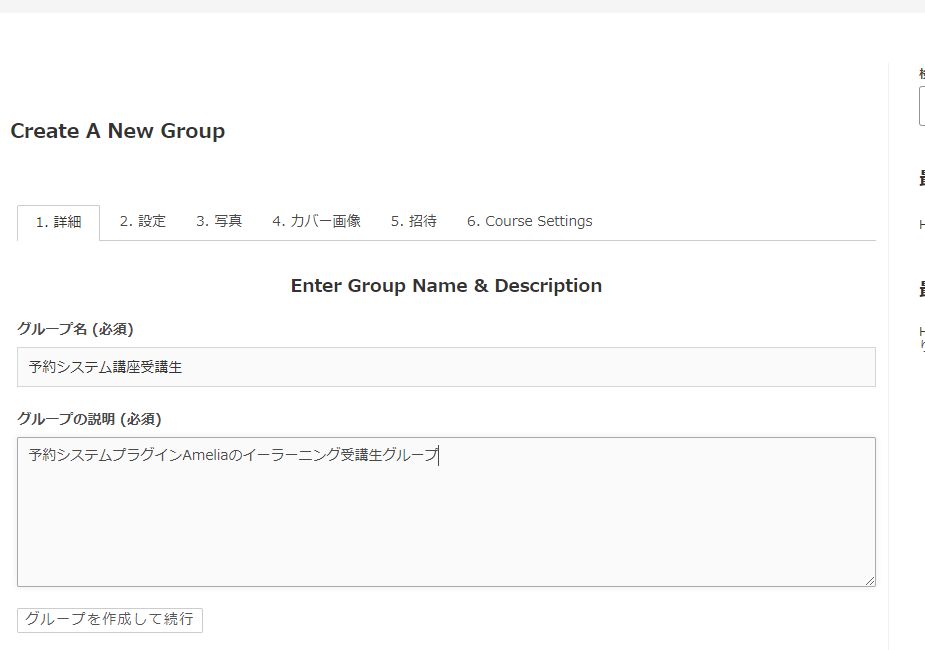
Create a group name
When you create a new one, first
- group name
- Group Description
Enter the.
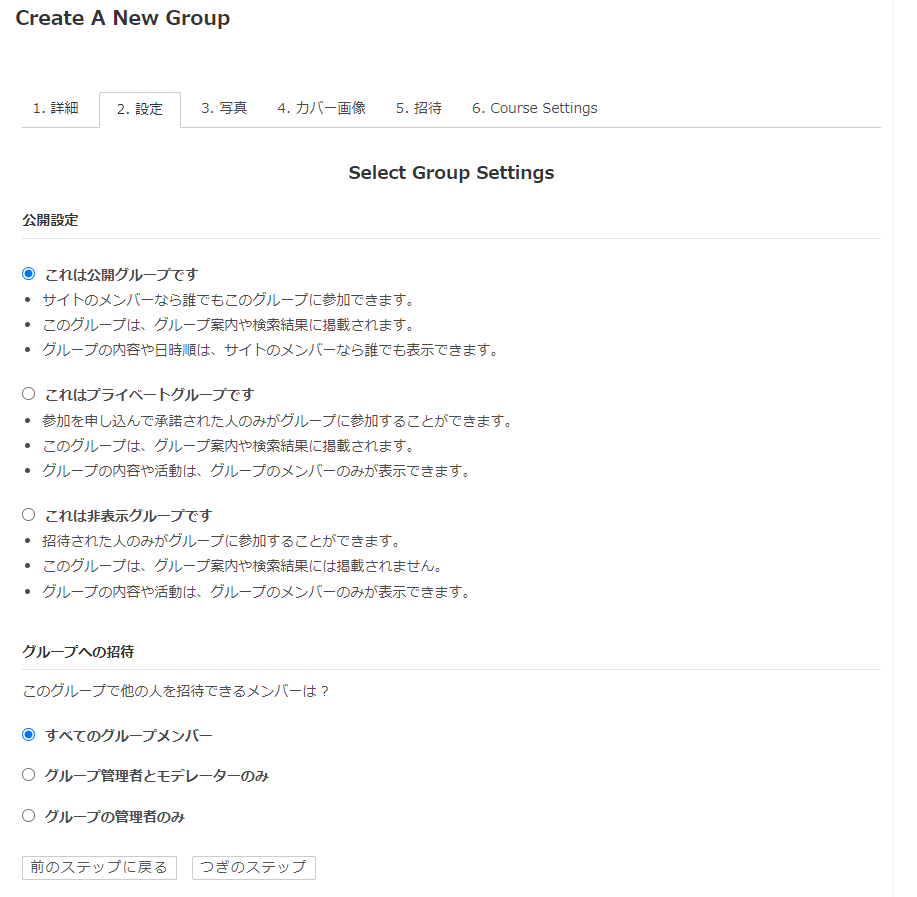
Group privacy settings
Determine the group settings.
- Public groups - Group activities are open to the public and anyone can join
- Private Groups - Group activities are open to members only. Permission required to join
- Private group - invite only
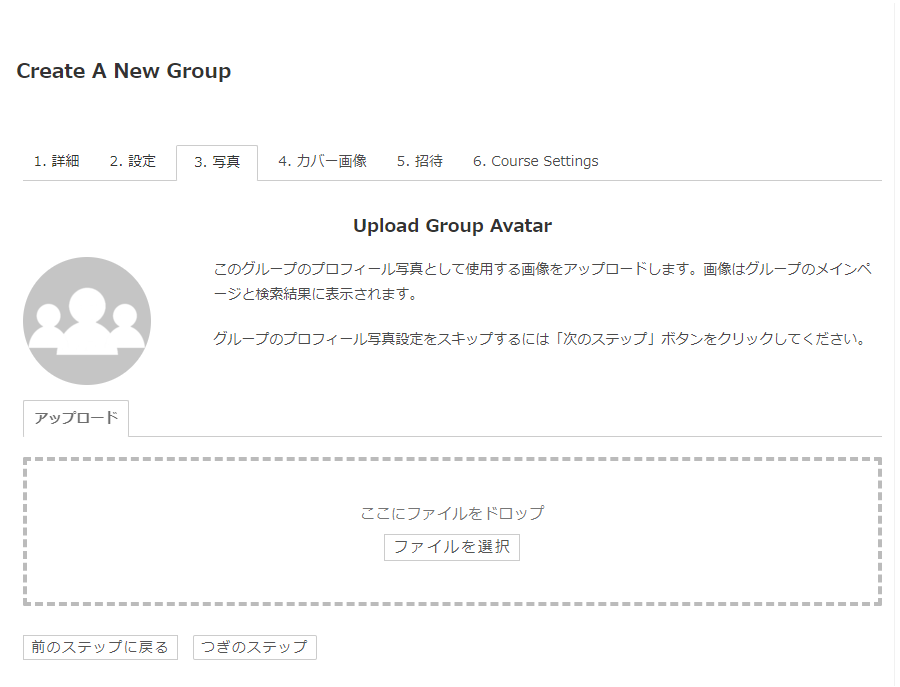
Group avatar settings
Set an avatar for your group (optional).
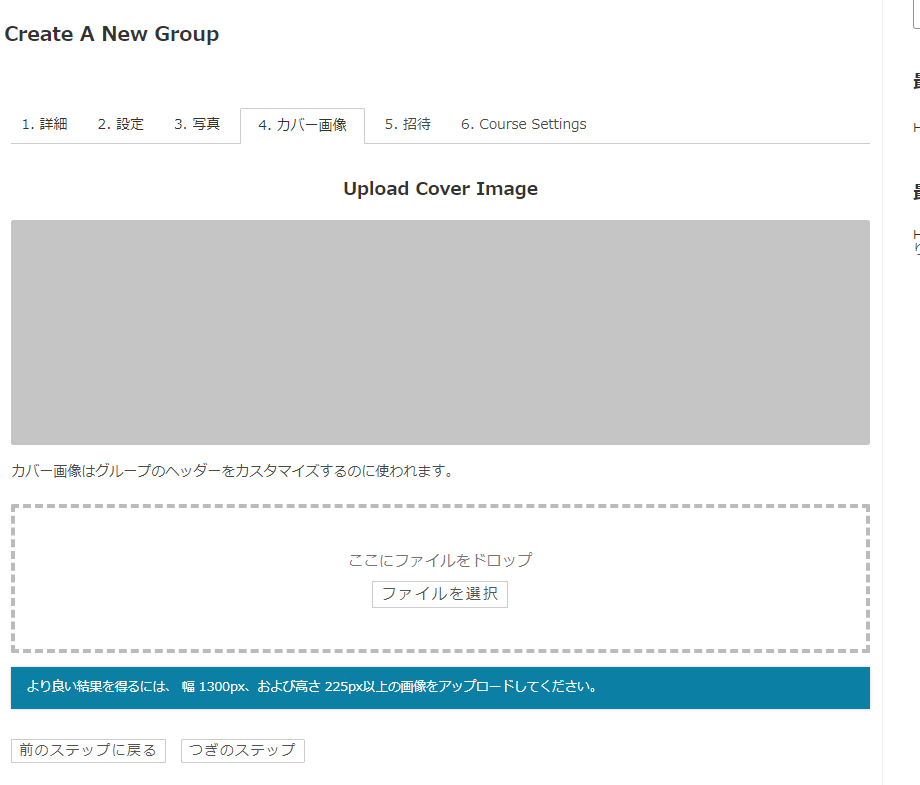
Cover photo settings
Set a cover photo (optional)
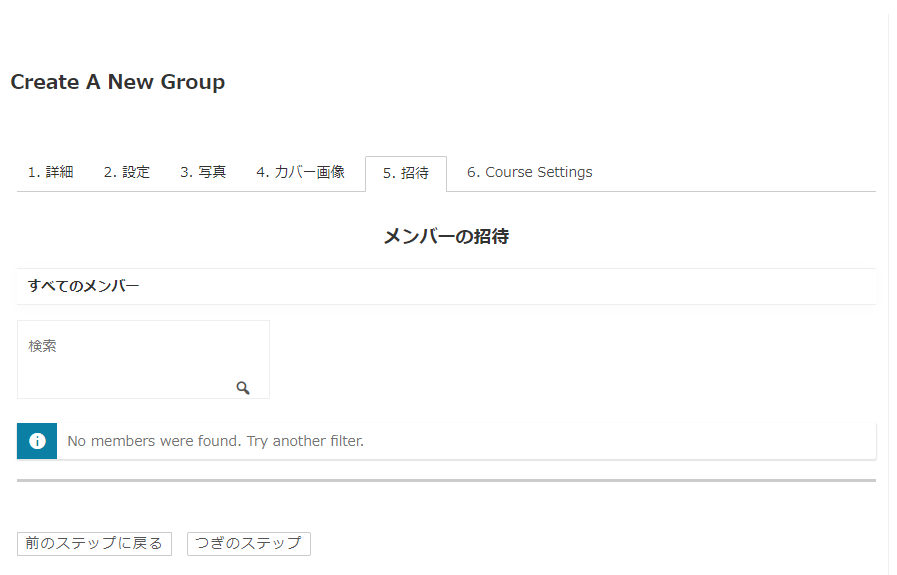
Member invitation
You can add members who are already registered with WordPress. (Optional)
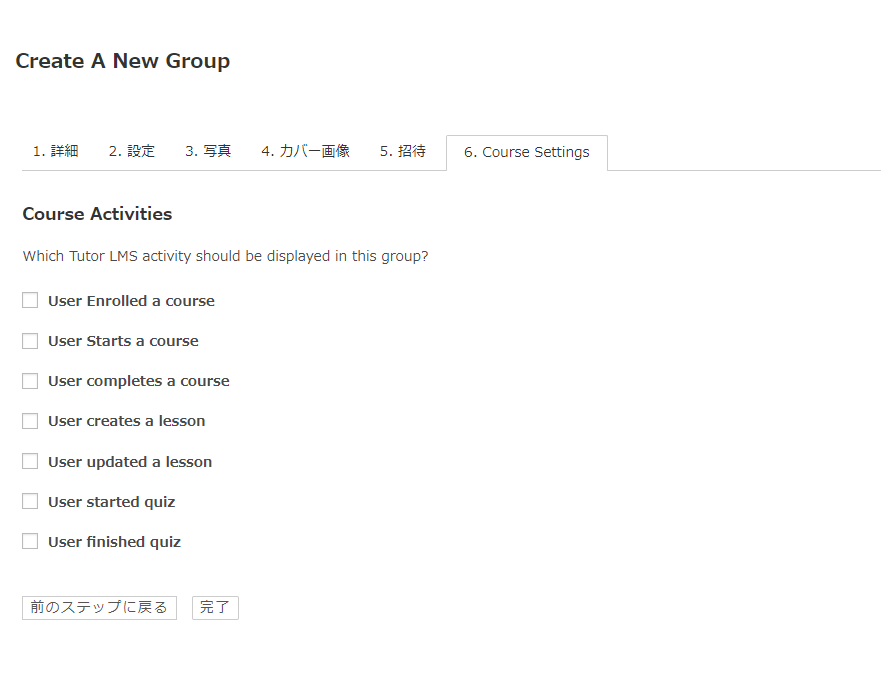
Configuring TutorLMS
Set which activities you want to display for the group.
- User Enrolled a course - when a user is added to a course
- User Starts a course – When a user starts taking a course
- User completes a course
- User creates a lesson - When an authorized administrator creates a course
- User updated a lesson - When an authorized administrator edits a course
- User started quiz - when a user starts a quiz
- User finished quiz - when the user finishes the quiz
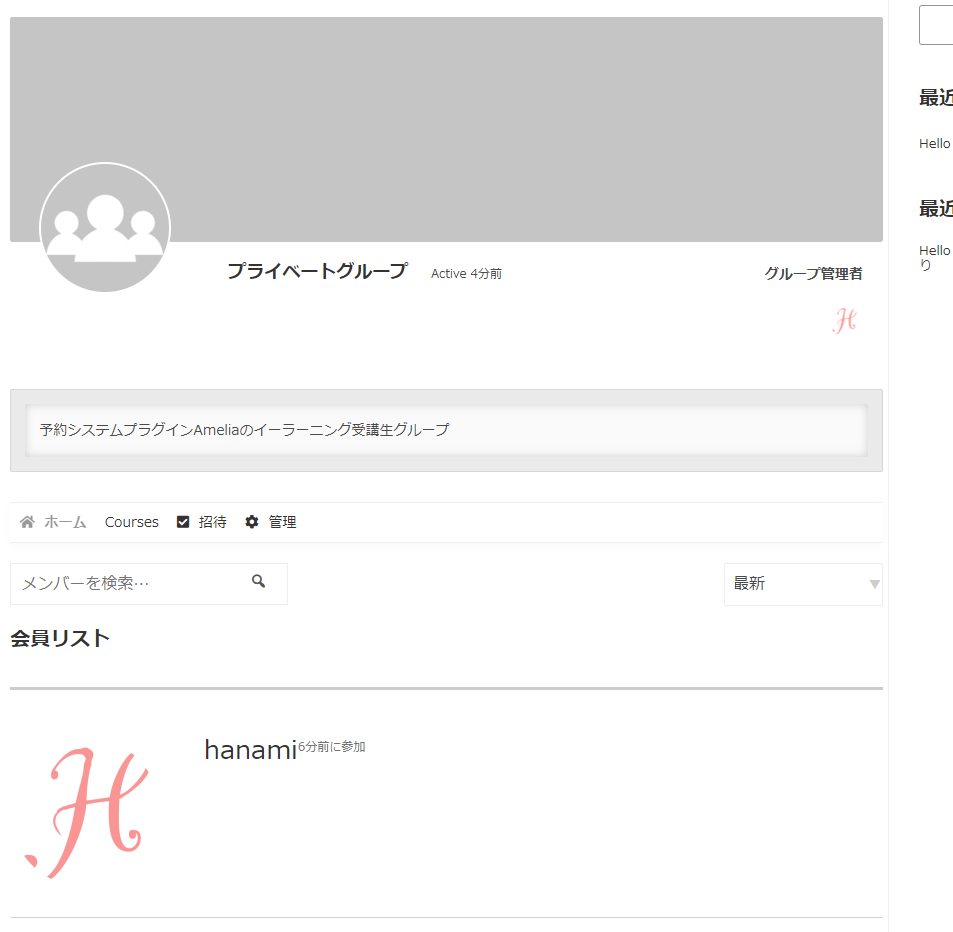
has been created.
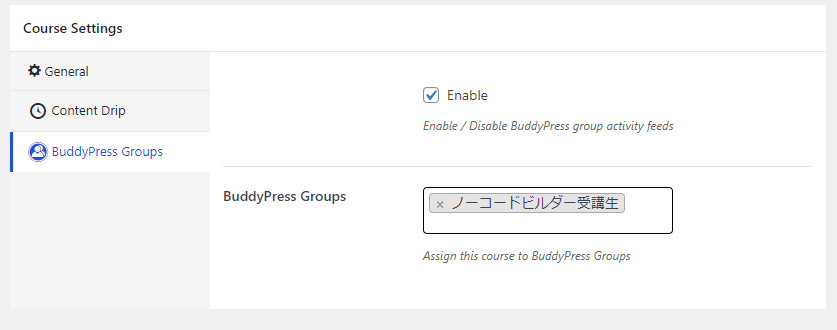
Set up a group for a course
Open the editing screen for the course you want to set up.
- TutorLMS
- Courses
- Open the editing screen for the course you want to edit or create a new one.
- Course Settings
- BuddyPress Groups
Check to enable the group function and select a group.
Private messaging feature
We would like to introduce the private message feature added to BirddyPress.
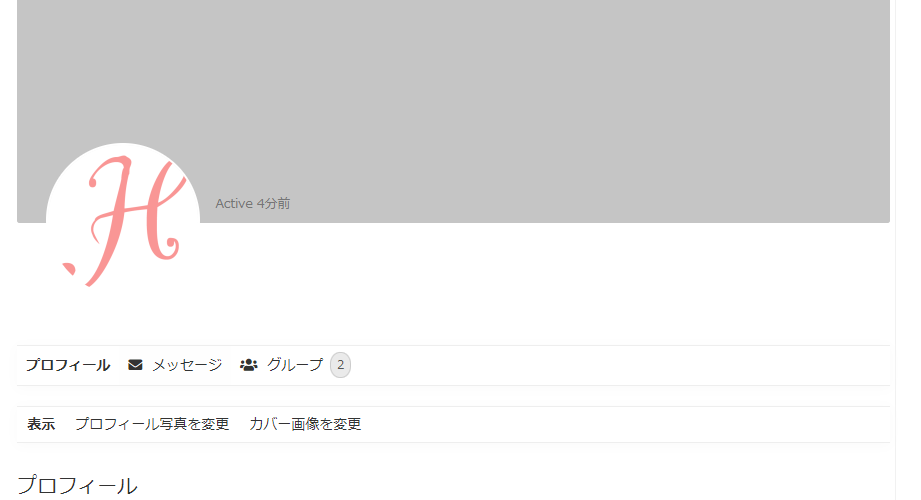
You can send a private message to a user via the red-lined area on the user's profile page.
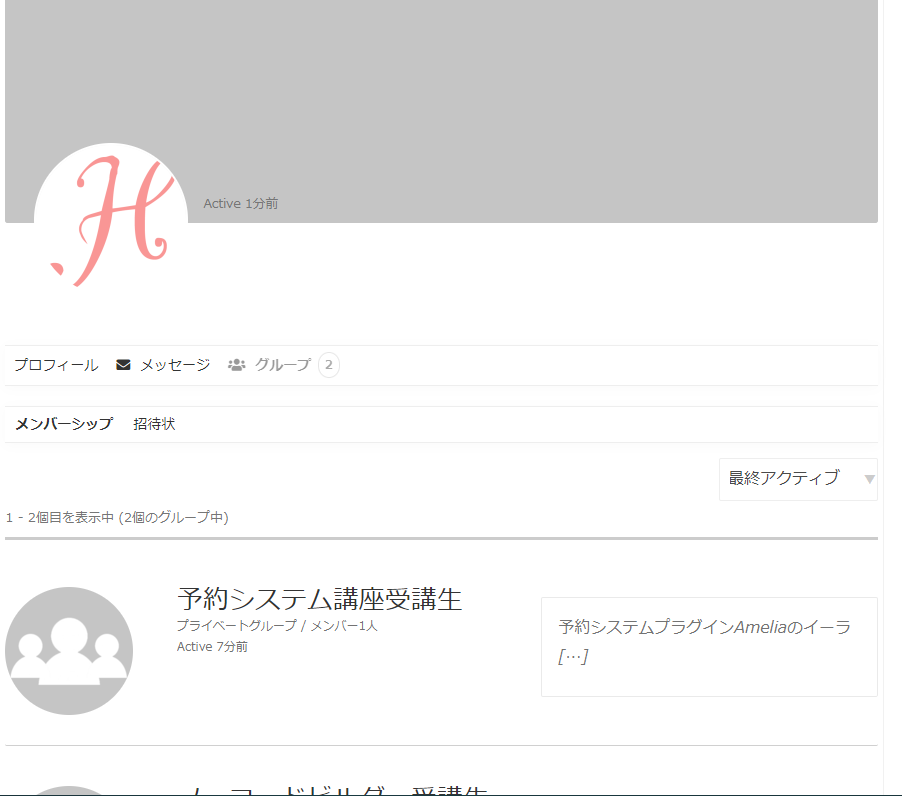
TutorLMS added to group activities

We are available on weekends and holidays!
Please contact us if you have any problems with your website!
- Unable to log in to WordPress
Malware infection?
- The homepage suddenly stopped displaying!
- A PHP error is occurring.
We also offer support on weekends and holidays for those who need assistance.
If you are in a hurry, please call us now at 03-6694-7024.
Latest Articles
[Anti-Fraudulent Login Prevention] Is your WordPress user ID visible to external parties? We explain how to check and security measures to hide your user ID!


Timing and Process for Renewing Your Recruitment Website | Key Points to Review to Increase the Number of Applications

7 Key Points for Creating a Recruitment Website | How to Create a Recruitment Site That Job Seekers Will Choose
 English
  日本語
日本語