How to create a website using WordPress/How to use plugins/No-code construction blog



[Illustrated & Video Explanation] Simple Memberships Online Membership Registration Plugin ~ How to Create a PayPal Button [One-Time Payment] ~
At HanamiWEB Online School,
●Ask questions in real-time in the virtual study room!
●Ask as many questions as you want via chat!
●E-learning materials that you can learn as much as you want, 24 hours a day!
All included for just 2,500 yen/month!
A WordPress teacher will carefully explain how to set up Simple Memberships, which allows you to easily create a membership site with WordPress and create an online salon or member-only content!
This time, we will explain how to create a PayPal payment button for paid members.
Go to payment settings
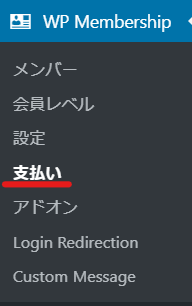
Click [WP Membership] > [Payment]
Create a PayPal button
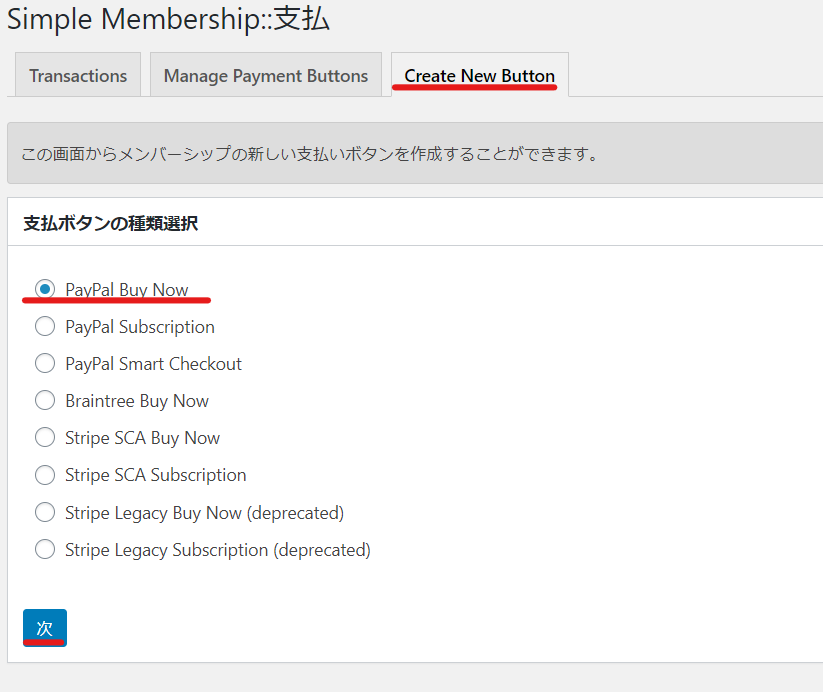
- Click 【Create New Button】
- Select [PayPal Buy Now]
- Click [Create]
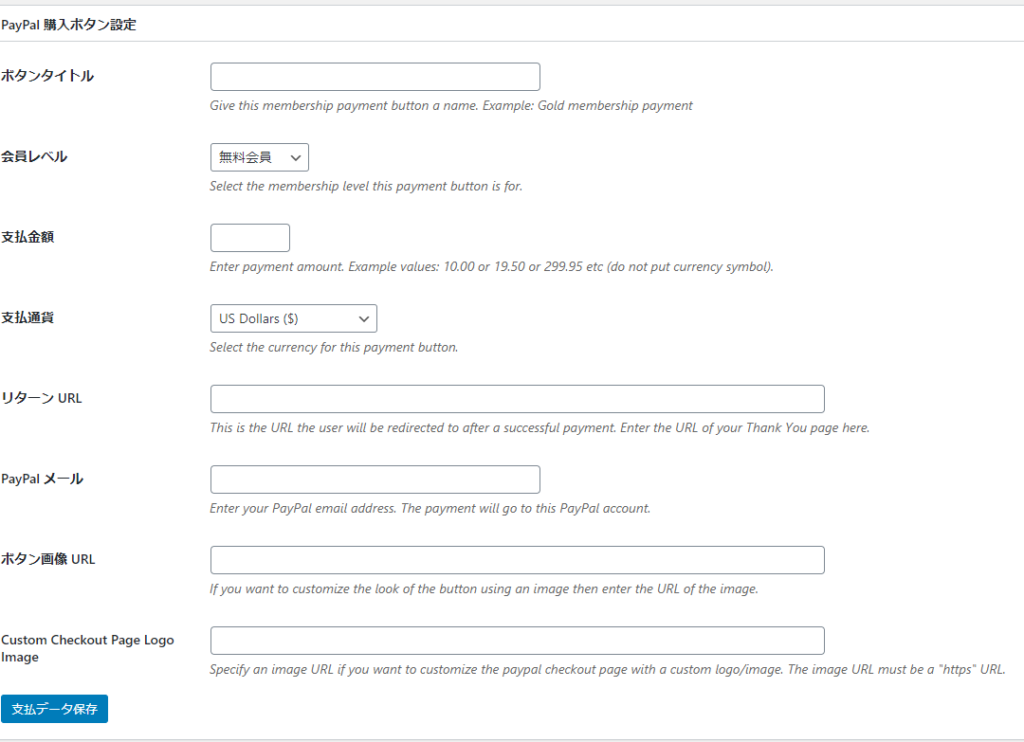
Enter your PayPal details
- Button Title
- Membership Levels
- payment
- Payment Currency
- Return URL
- PayPal Email
- Button Image URL
- Custom Checkout Page Logo Image
We will set up the following.
Button Title
Determines the title of the button.
Example: Member 1
Membership Levels
Select the membership level you want to set from the membership levels you have created.
payment
Set the payment amount
Example: 500
Payment Currency
Select Japanese Yen (¥).
Return URL
Specify the URL of the thank you page that will be displayed after the customer completes the payment with the PayPal button that you created. If you do not have a thank you page yet
Create a Thank You Page
Create a new static page by clicking [Static Page] > [Add New]. Here is a very simple example.
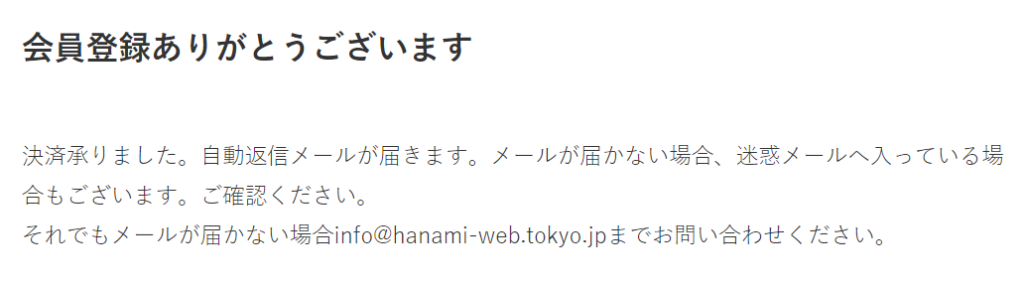
Create a page like this. Set the slug to something like [thankyou].
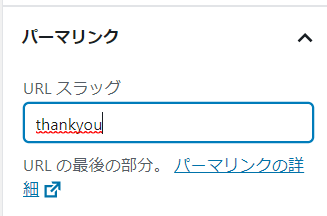
In this case, the URL of the Thank you page we created is https://simple-member.web-design.biz/thankyou/, so the value is
https://simple-member.web-design.biz/thankyou/
Enter the URL of the Thank you page you created.
PayPal Email
Enter the email address you used to create your PayPal account.
Button Image
Specify the image of the button that the customer will press when purchasing. If you search for "free purchase button material," you can download purchase buttons in various patterns. This time, we decided to use the image below.
If you don't want to set an image, leave it blank.

You can find the image URL by going to [Media Library] in the dashboard and clicking on the image to view the details screen.
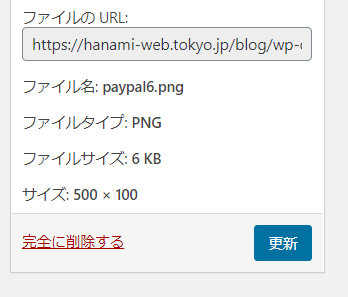
Custom Checkout Page Logo Image
If you want to customize the PayPal payment screen with your own logo, please specify the logo image URL.
Here is a sample with the information
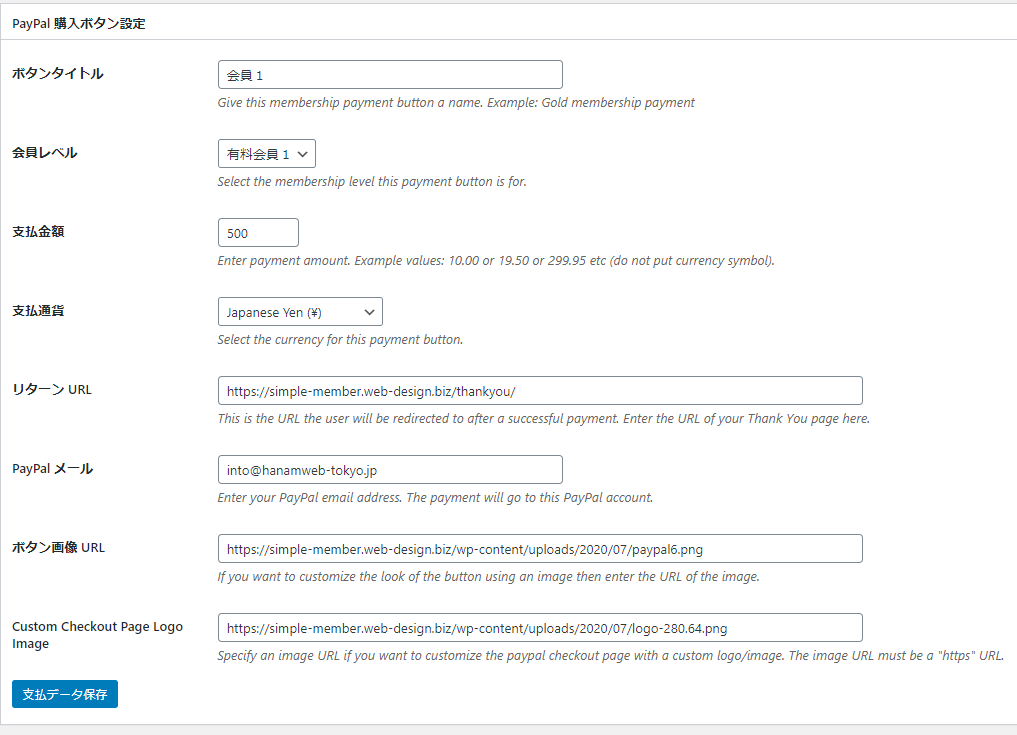
PayPal button created
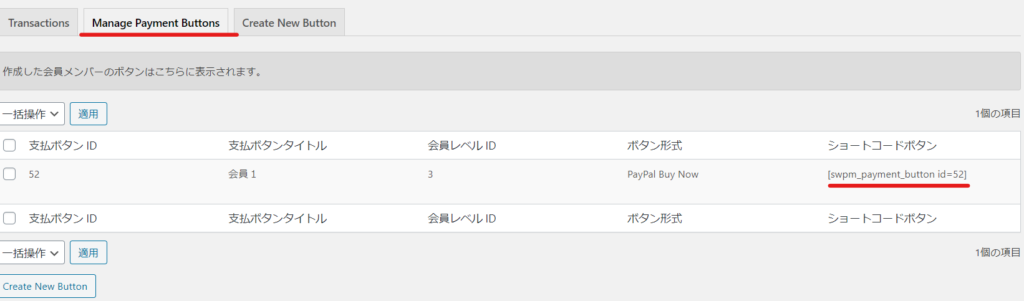
The PayPal button you just created is listed in [Manage Payment Button]. Use [Shortcode] to place the PayPal button on the paid membership registration page.
In my case, [swpm_payment_button id=52] is the shortcode to display the button I created.
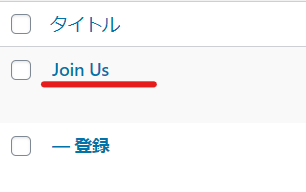
Automatically created page [Join Us]
Activate the Simple member ship plugin and paste the shortcode into the [Join Us] page, one of the pages that is automatically generated.
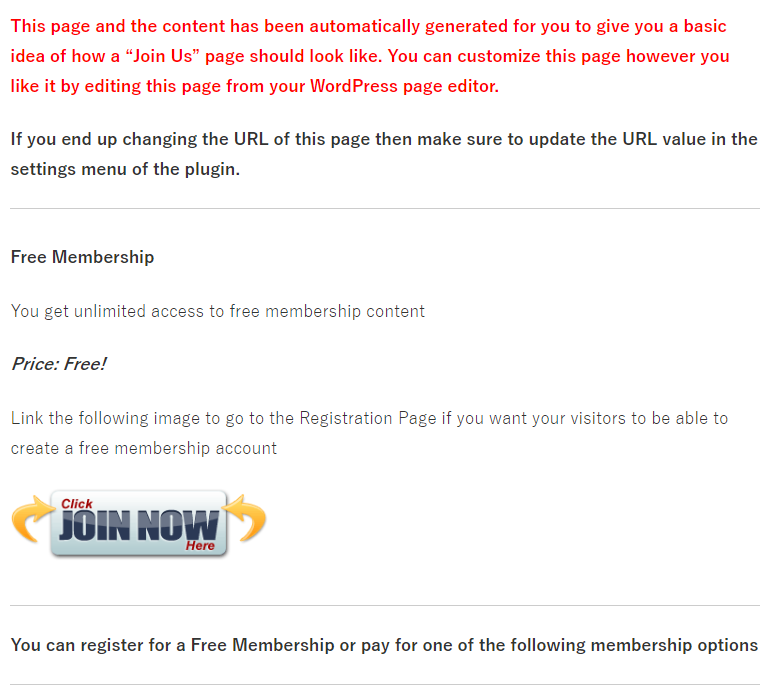
Delete all default sales text and change it to sales text that suits your service.
Insert the shortcode in the text like this:
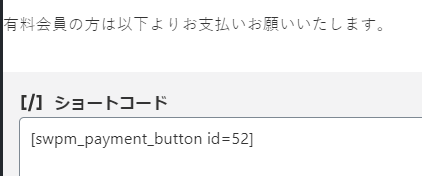
This makes it easy to set up a purchase button.
Click the purchase button
You will be redirected to the payment screen for the 500 yen amount you set.

This completes the payment button. There's no need to create a button on PayPal and then embed it on the page, so you can easily introduce PayPal payments!
I want to open the PayPal payment page in a separate window.
Add [new_window="1"] to the shortcode.
[swpm_payment_button id=52 new_window="1"]Please change the id to your own button id.

We are available on weekends and holidays!
Please contact us if you have any problems with your website!
- Unable to log in to WordPress
Malware infection?
- The homepage suddenly stopped displaying!
- A PHP error is occurring.
We also offer support on weekends and holidays for those who need assistance.
If you are in a hurry, please call us now at 03-6694-7024.
Latest Articles
[Anti-Fraudulent Login Prevention] Is your WordPress user ID visible to external parties? We explain how to check and security measures to hide your user ID!
Timing and Process for Renewing Your Recruitment Website | Key Points to Review to Increase the Number of Applications
7 Key Points for Creating a Recruitment Website | How to Create a Recruitment Site That Job Seekers Will Choose
 English
  日本語
日本語