How to create a website using WordPress/How to use plugins/No-code construction blog



WordPress security enhancement plugin All in one WP Security ~ Explaining firewall .htaccess settings
At HanamiWEB Online School,
●Ask questions in real-time in the virtual study room!
●Ask as many questions as you want via chat!
●E-learning materials that you can learn as much as you want, 24 hours a day!
All included for just 2,500 yen/month!
A must-read for those who are concerned about the security of their WordPress site
We explain how to enhance security with the free All in one WP Security plugin.
This time, we will explain the Firewall > .htaccess rules settings.
For more information, please see the All in one WP Security explanation table of contents!
There's an article that describes the steps taken to remove malware and restore a WordPress site after it was actually compromised by malware. Please refer to it.
→How to Prevent WordPress Tampering and Malware Infections, and How to Deal with Infections [Real-Life Experience Summary] "Anti-Malware Security"
What is All in one WP Security Firewall PHP rules setting?
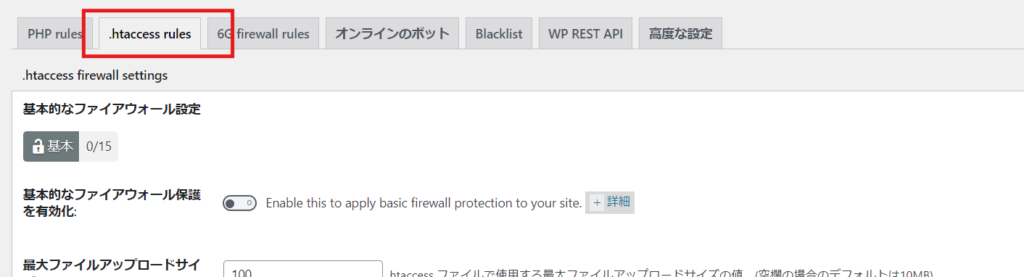
In the PHP rules settings within the firewall settings of All in one WP Security, you can configure the firewall via .htaccess.
- WP Security
- Firewall
- .htaccess rules
and set it up.
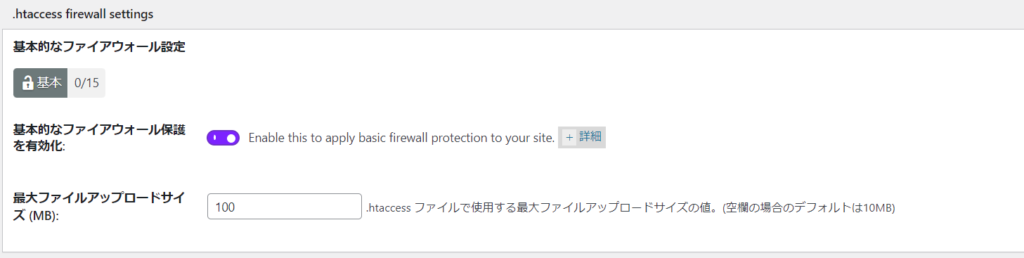
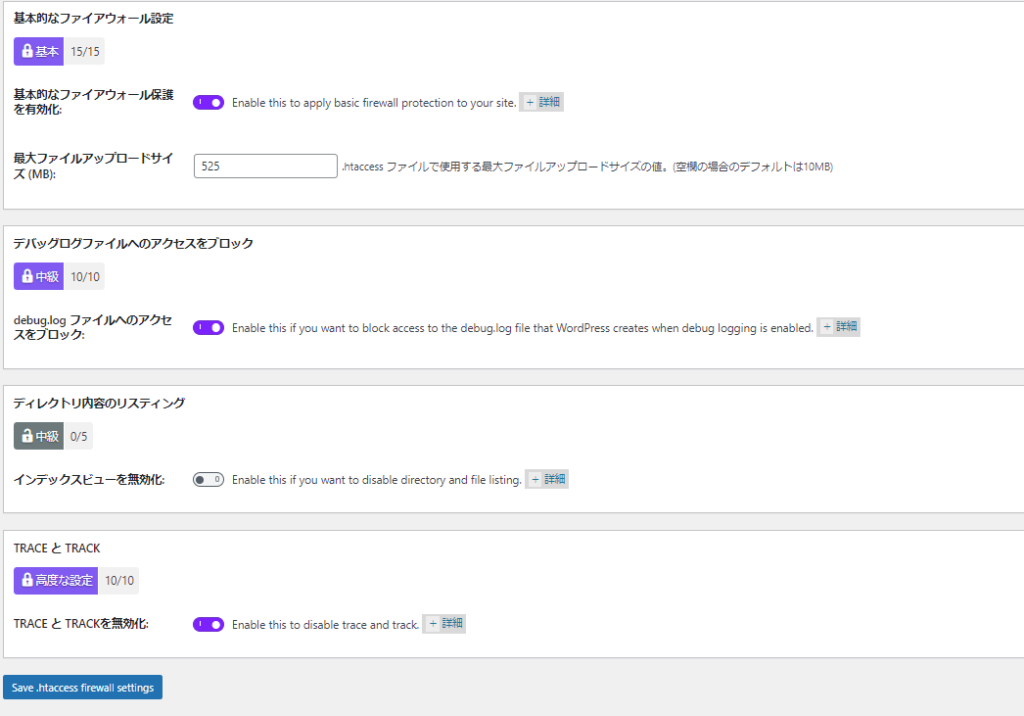
Basic Firewall Configuration
When the basic firewall setting is turned on, the following functions are enabled. Please change the number of uploaded files as necessary. If the limit is 100MB, you may not be able to upload images.
1) Protect by denying access to .htaceess files
2) Disable the server signature
3) Limit upload size
4) Secure your site by denying access to your wp-config.php file
Block access to debug log files
WordPress outputs log information in wp-content>debug.log. Because it may contain security-related information, it is turned OFF by default, but you should set it to ON.
If you need access to the debug.log file, you can access it through a file manager or via FTP.

Listing the contents of a directory
This is a little complicated because you need to change the settings to "AllowOverride" in the Indexes directive in the httpd.conf file, but you do not need to set it.

TEACE and TRACK
This function is intended to prevent hacking attacks, so it is set to OFF by default, but you can set it to ON.
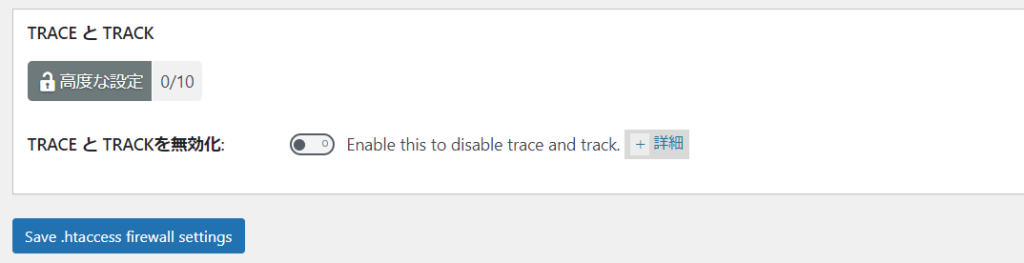
Firewall .htaccess rules configuration example

We are available on weekends and holidays!
Please contact us if you have any problems with your website!

- Unable to log in to WordPress
Malware infection?
- The homepage suddenly stopped displaying!
- A PHP error is occurring.
We also offer support on weekends and holidays for those who need assistance.
If you are in a hurry, please call us now at 03-6694-7024.
Latest Articles
[Anti-Fraudulent Login Prevention] Is your WordPress user ID visible to external parties? We explain how to check and security measures to hide your user ID!


Timing and Process for Renewing Your Recruitment Website | Key Points to Review to Increase the Number of Applications

7 Key Points for Creating a Recruitment Website | How to Create a Recruitment Site That Job Seekers Will Choose
 English
  日本語
日本語