How to create a website using WordPress/How to use plugins/No-code construction blog




How to automatically downgrade cancelled Simple Membership users to a free membership
At HanamiWEB Online School,
●Ask questions in real-time in the virtual study room!
●Ask as many questions as you want via chat!
●E-learning materials that you can learn as much as you want, 24 hours a day!
All included for just 2,500 yen/month!
We'll show you how to use the Simple Membership plugin, which allows you to easily create paid subscription memberships for free on WordPress, and automatically transition users to a free membership if they cancel their paid membership!
Install Add-on
To implement this function, you need to install additional features distributed from the official website.
Click on the text link 【Click here】.
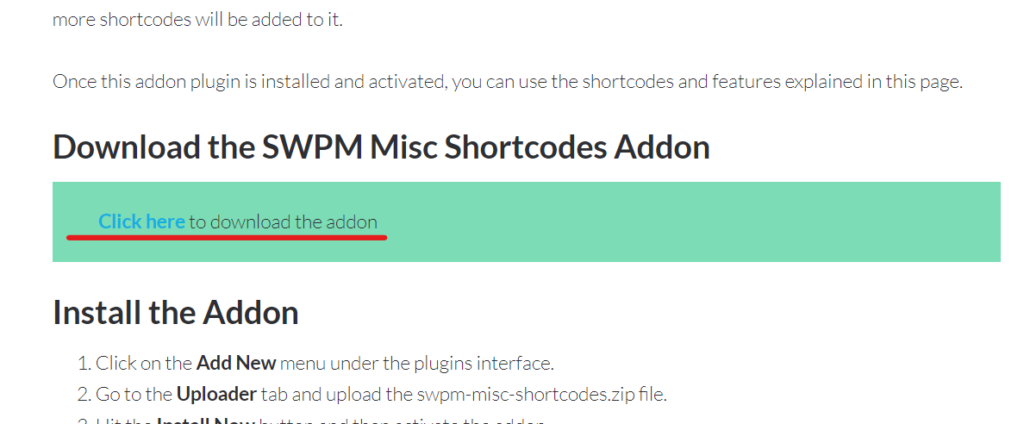
Add new plugin
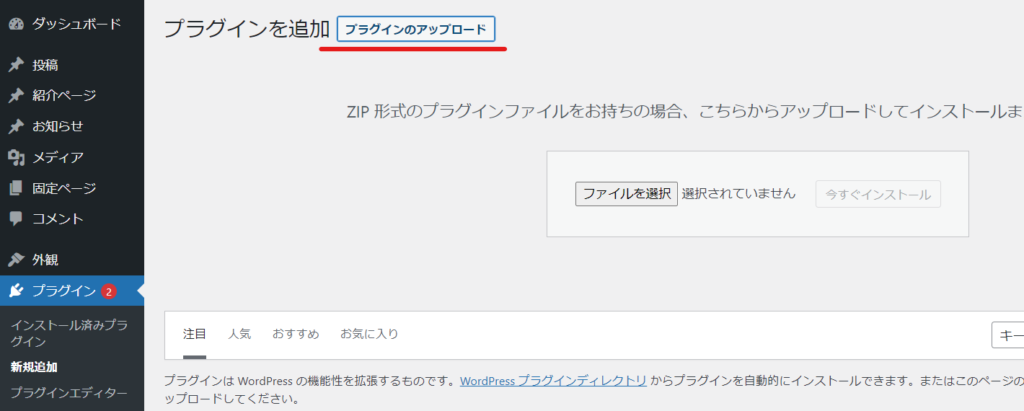
Go to your WordPress dashboard,
- Plugin
- New additions
- Uploading the Plugin
- Select files
- Install now
- activation
This will enable additional add-ons.
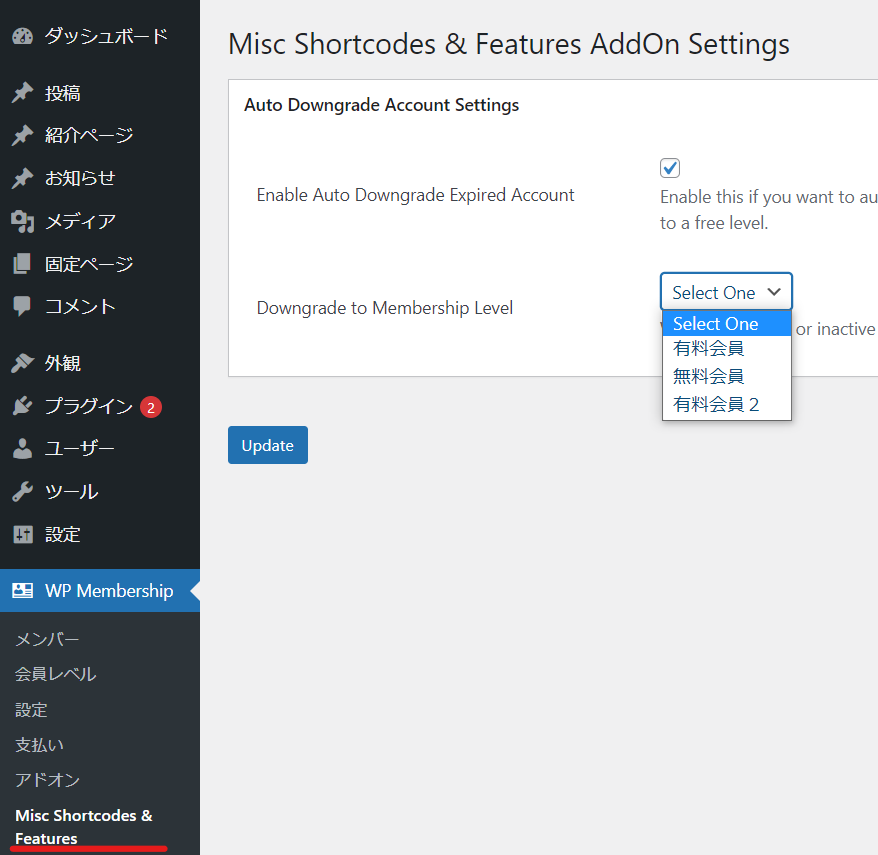
Downgrade Settings
Once enabled, a "Misc Shortcodes & Features AddOn Settings" item will be added to the Simple Membership settings.
- Enable Auto Downgrade Expired Account - Check
- Downgrade to Membership Level - Set which membership level an expired user will be assigned to
User unsubscribes
The user who pays via Stripe will cancel the subscription.
The settings for the Cancel button are shown below.
Timing of downgrade
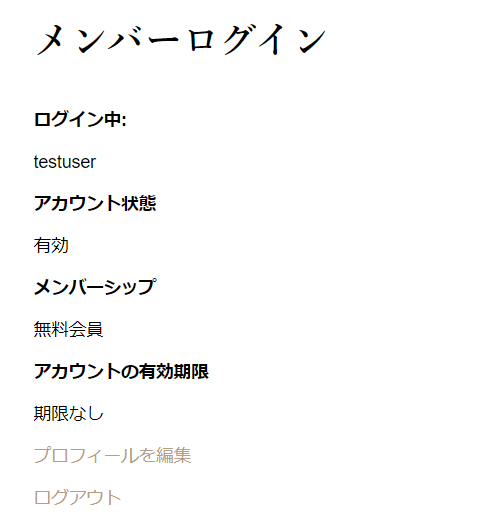
It will be updated when the member logs in.
When testing, log out and log back in, and you will see that you have been automatically switched to a free membership as shown below.

We are available on weekends and holidays!
Please contact us if you have any problems with your website!
- Unable to log in to WordPress
Malware infection?
- The homepage suddenly stopped displaying!
- A PHP error is occurring.
We also offer support on weekends and holidays for those who need assistance.
If you are in a hurry, please call us now at 03-6694-7024.
Latest Articles
Timing and Process for Renewing Your Recruitment Website | Key Points to Review to Increase the Number of Applications
7 Key Points for Creating a Recruitment Website | How to Create a Recruitment Site That Job Seekers Will Choose
What is the average cost of a recruitment website? A thorough explanation of pricing by production method.
 English
  日本語
日本語